

Collection Runner
Run all requests in a collection or folder in sequence. The runner executes each request one at a time, applies pre-request scripts, runs test assertions, and reports the result for every request in a single view.
Opening the Runner
Right-click any collection in the sidebar and choose Run Collection. To run only a subset of requests, right-click a folder and choose Run Folder.
To run every collection in the workspace in one go, use the Run All Collections button (play icon) in the sidebar header next to New Collection and Import. Requests run in collection order and environment chaining carries across collections.
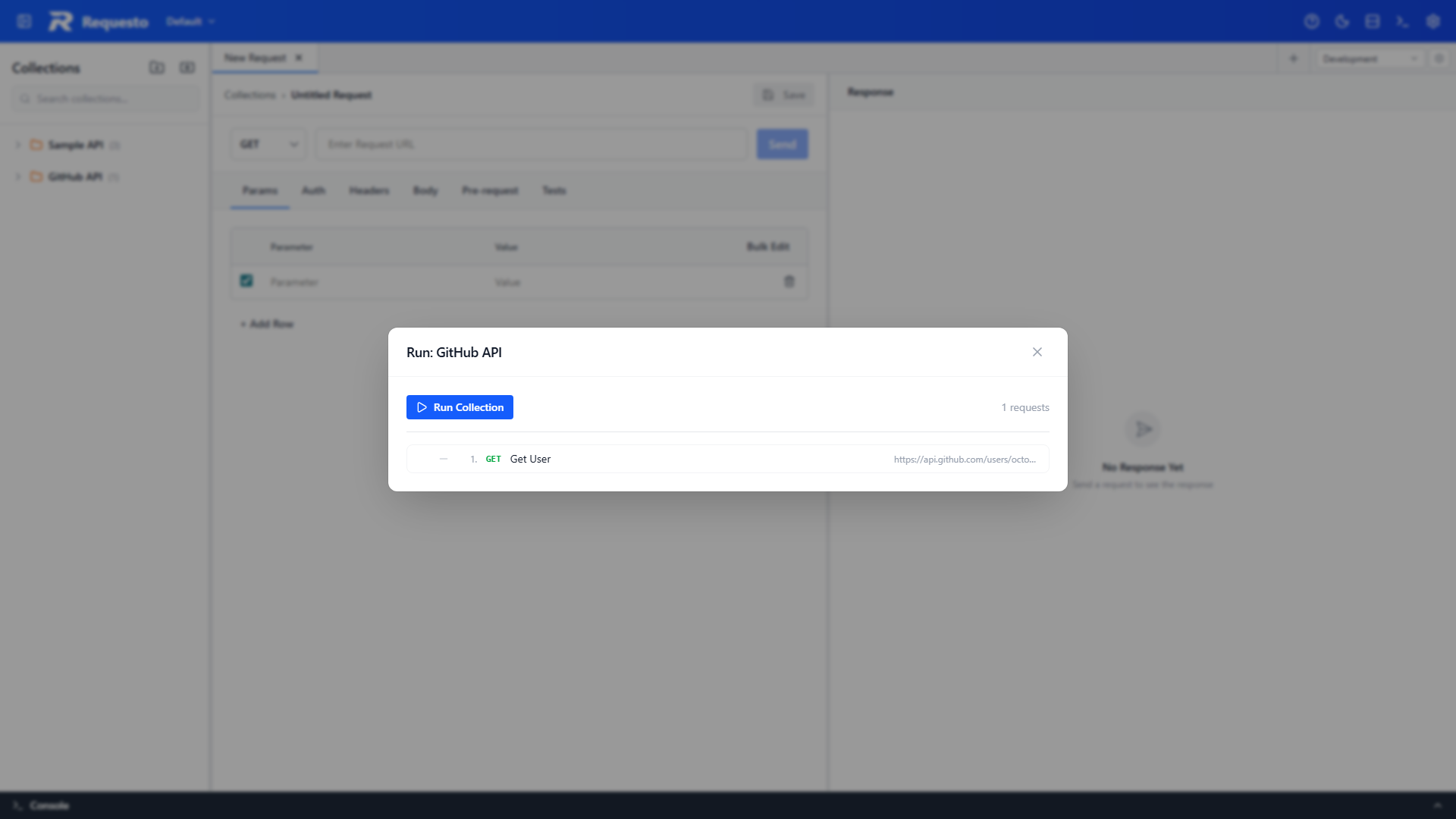
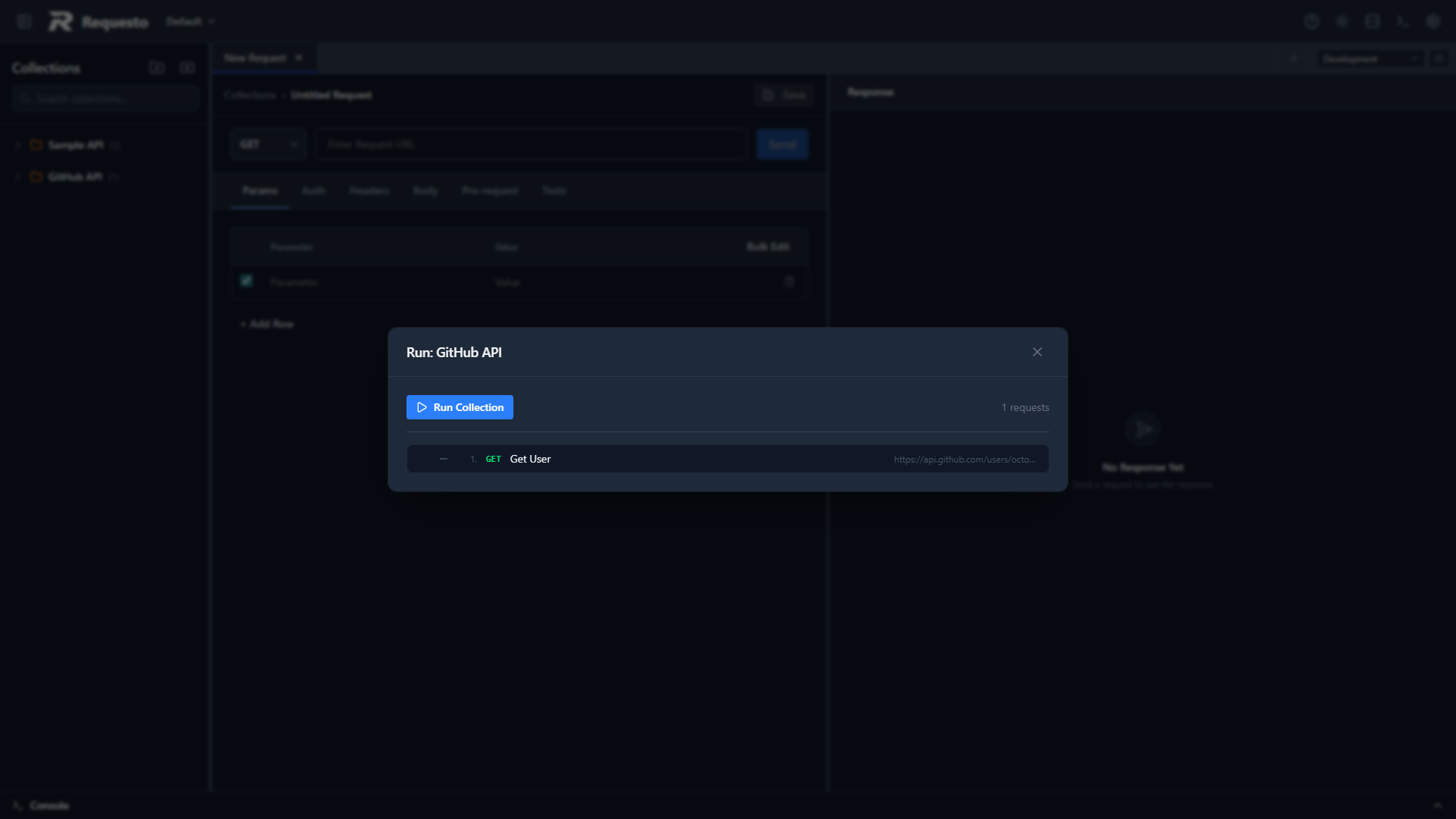
The Runner Dialog
The dialog shows all requests grouped by their folder structure. The toolbar at the top has these controls:
- Run Collection - starts executing requests from the beginning
- Stop - aborts the in-flight request immediately and marks the remaining requests as skipped
- Reset - clears all results and resets every request to pending
A summary count at the top right shows how many requests passed, failed, or errored during the run.
Isolation
Every run executes inside a temporary server-side workspace, so runs can never damage your own data:
- Before the first request, a scratch workspace is created and activated. It inherits your active workspace's environments and OAuth configurations (including stored client secrets and cached tokens), so requests resolve variables and authenticate exactly as they would outside a run.
- The whole run happens inside it.
- Afterwards , even if the run fails or is stopped , your previous workspace is restored and the scratch workspace is deleted.
Collections, environments and workspaces created or deleted by a run disappear with the scratch workspace. One consequence: environment "current values" set by scripts during a run chain forward through the run but are not persisted to your workspace afterwards.
The CLI supports the same behaviour with --isolated <serverUrl> (see CLI Reference); in pipelines you opt in there because the CLI can also target APIs that aren't Requesto servers.
Request Status
Each request row shows one of the following statuses:
| Status | Meaning |
|---|---|
| Pending | Not yet run |
| Running | Currently executing |
| Passed | All tests passed (or no tests defined) |
| Failed | One or more tests failed |
| Error | The request itself failed (network error, timeout, etc.) |
| Skipped | The run was stopped before this request was reached |
Expanding Request Results
Click a request row to expand it and see the response details. Expanded rows have two tabs:
- Response - status code, headers, body, and duration
- Tests - individual test names and pass/fail status
Rows with test results (or errors) expand automatically as each request finishes.
The runner uses the currently active environment for every request. GraphQL requests run as proper GraphQL (the saved query document and variables are sent), and pre-request scripts, test scripts, and environment chaining all apply to them as well.
Scripts and Environment Chaining
Pre-request scripts and test scripts run for every request in the runner, just as they would when sending a request manually.
Environment changes made by one script carry forward to subsequent requests in the same run. If a pre-request script calls environment.set('token', value), that value is available to the next request's URL, headers, and scripts without any manual intervention.
This lets you chain requests: authenticate, capture a token, then use it in follow-up calls.
Folder Groups
Requests are displayed under their folder headers. Click a folder header to collapse or expand that group. Collapsing a folder group only hides the display - the requests still run when you click Run.
Skipping Collections
In the workspace-wide runner (Run: All Collections), each collection header has a checkbox. Unchecking a collection removes it from the run: its rows are greyed out, its requests are reported as skipped, and nothing is sent. Useful for leaving out slow or long-running collections (e.g. server-sent events) without moving them. The CLI equivalent is --exclude-collection <name> (see CLI Reference).
Related Features
- Pre-request Scripts - run JavaScript before each request
- Tests - write assertions that validate each response