

Workspaces
Workspaces let you isolate different projects. Each workspace has its own collections, environments, and OAuth configurations stored in a separate directory.
How It Works
A workspace is a directory on disk. When you switch workspaces, the backend reads and writes to that workspace's directory, so collections and environments from one project never bleed into another.
Requesto starts with a built-in workspace named Local Workspace (stored in the Default/ directory). You can create as many additional workspaces as you need.
data/
├── workspaces.json       # Registry of all workspaces
├── Default/              # Built-in workspace ("Local Workspace")
│   └── .requesto/        # All workspace data
│       ├── order.json    # Display order of items
│       ├── collections/  # One JSON file per collection
│       ├── environments/ # One JSON file per environment
│       ├── oauth-configs/ # One JSON file per OAuth configuration
│       ├── mock-endpoints/ # One JSON file per mock server endpoint
│       ├── .gitignore    # Ignores the local/ subdirectory
│       └── local/        # Local-only data (excluded from git)
│           ├── history.json
│           ├── environments.local.json
│           ├── active-environment.json
│           ├── oauth-secrets.json
│           └── oauth-tokens.json
└── workspaces/           # Additional workspaces (created or git-cloned)
Switching Workspaces
The workspace switcher is in the top header bar. Click it to open a dropdown listing all your workspaces. Select one to switch to it.
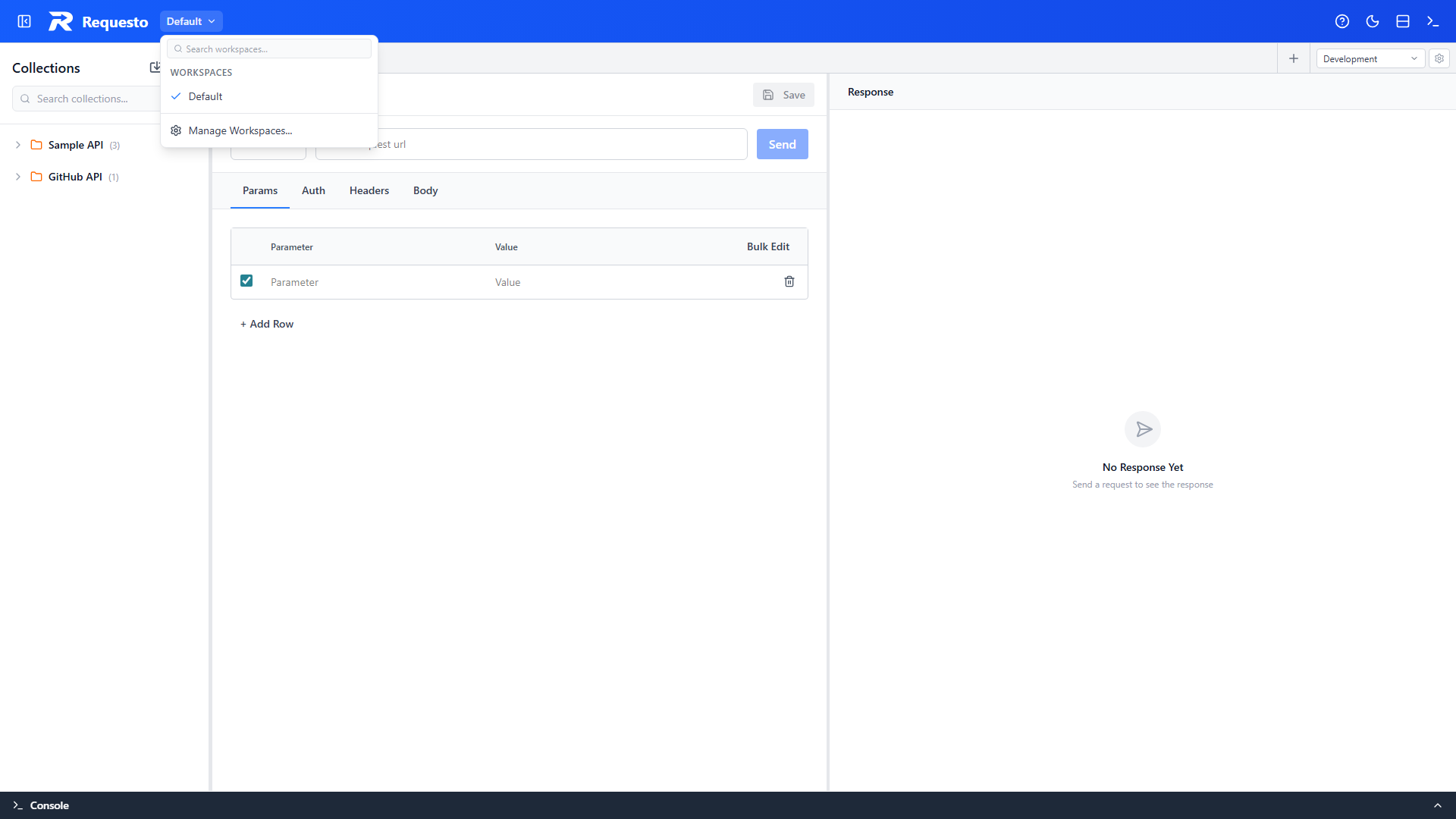
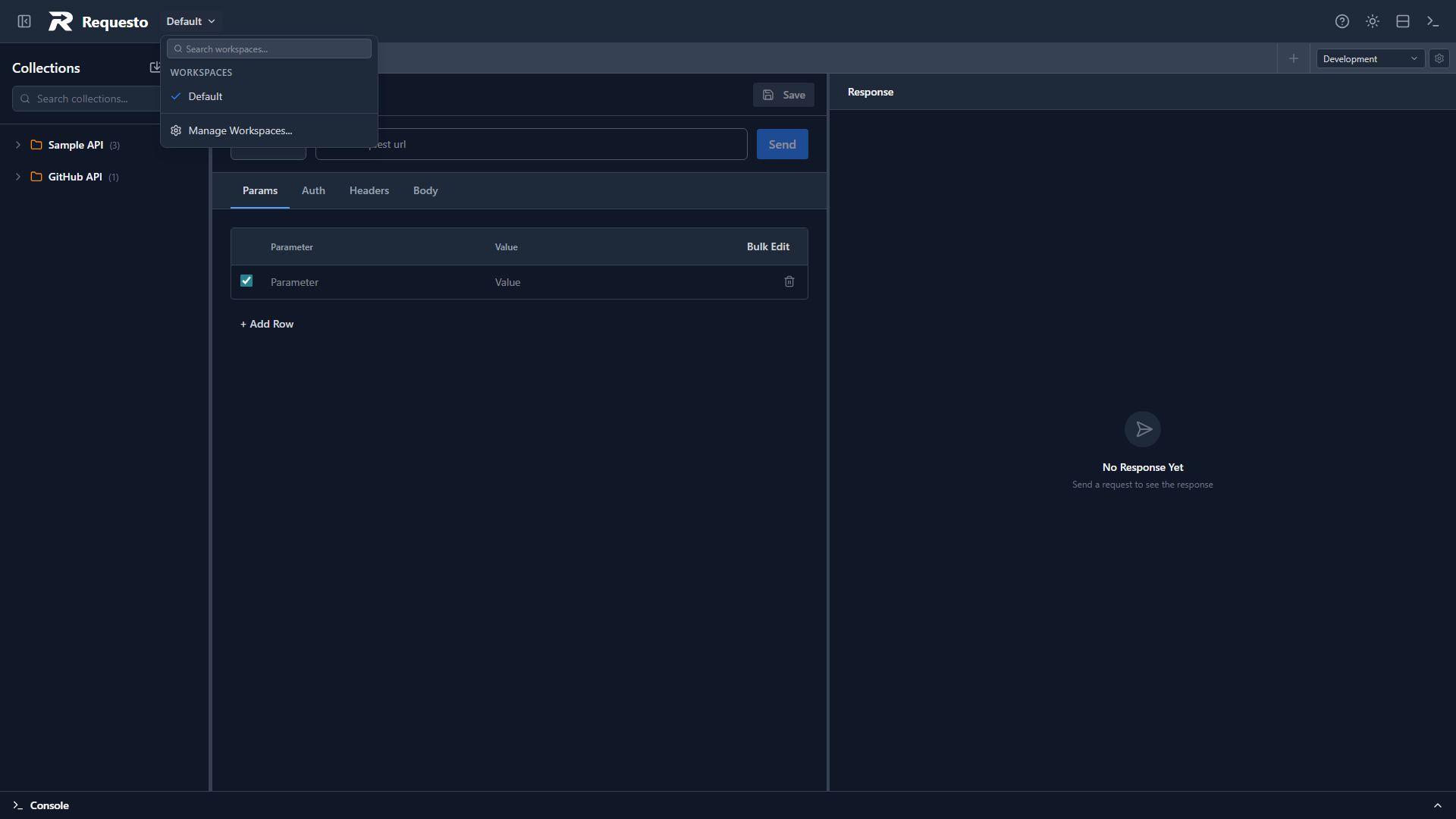
If a workspace is a git repository, a branch icon appears next to its name.
The search box in the dropdown filters workspaces by name.
Adding a Workspace
Click Add Workspace... at the bottom of the workspace switcher dropdown (or open the workspace manager and click Add Workspace). The dialog offers four ways to add a workspace:
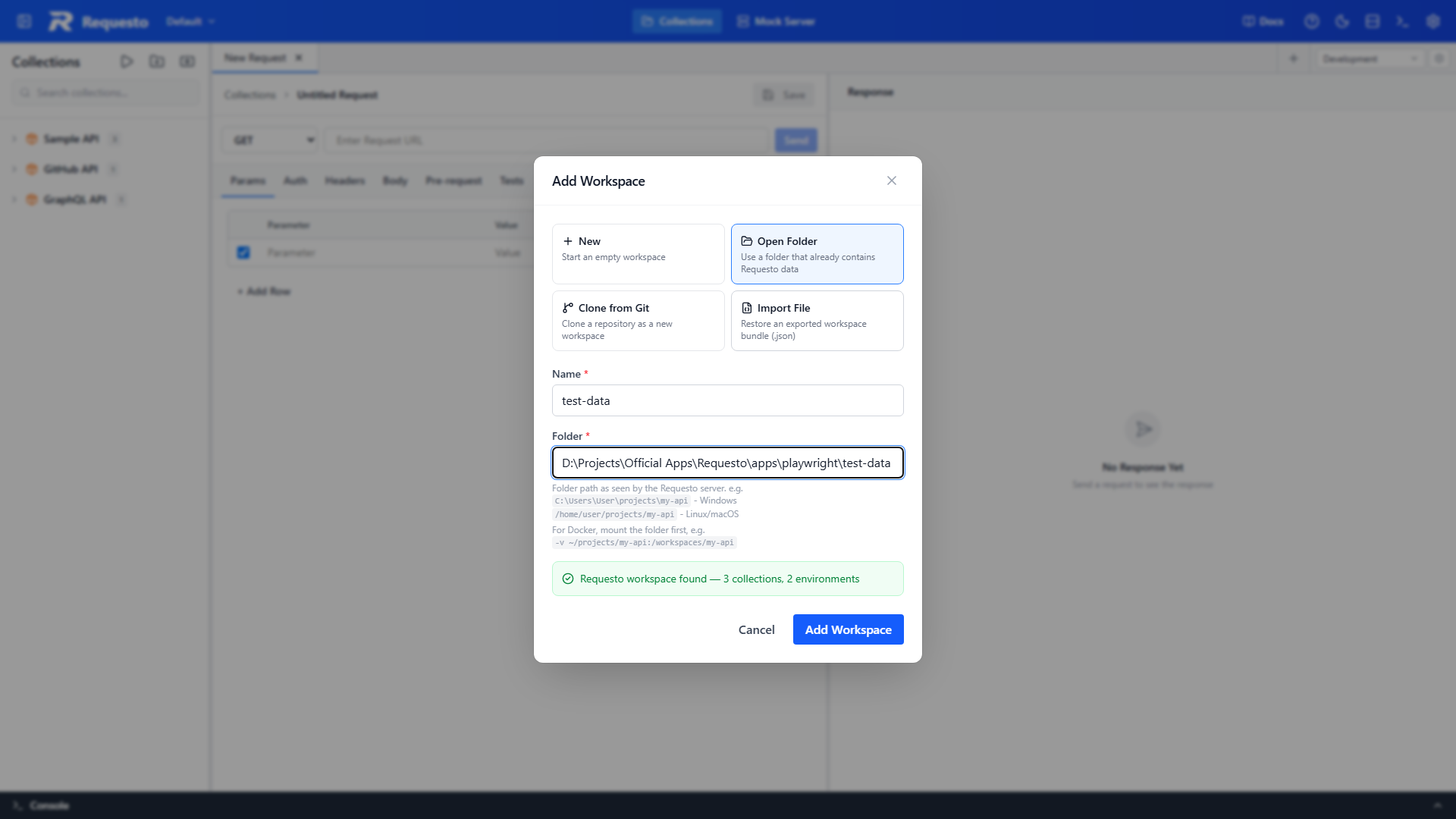
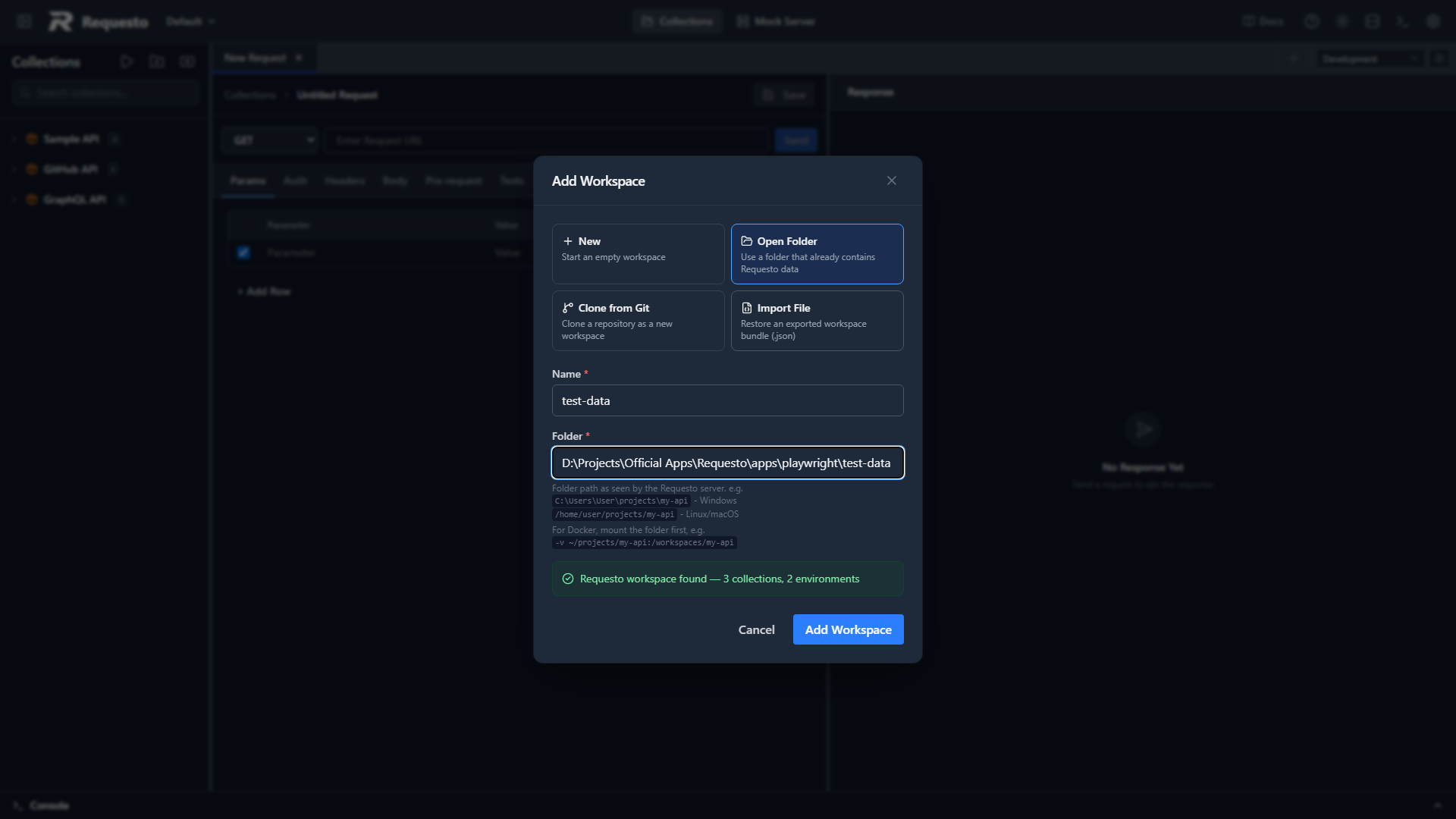
- New — create an empty workspace. Requesto creates the folder and its
.requesto/data directory underdata/workspaces/. - Open Folder — register a folder that already contains Requesto data (for example a project repo with a
.requesto/folder). See below. - Clone from Git — clone a git repository into
data/workspaces/and register it as a workspace. See Git Integration. - Import File — restore a previously exported workspace bundle (
.json).
When you add a workspace, Requesto switches to it automatically.
Opening an Existing Project Folder
If you've pulled down a project repo that already contains a .requesto/ folder, use Open Folder:
- Open the Add Workspace dialog and choose Open Folder
- Select the folder (desktop app) or type its path (web/Docker)
- Requesto previews what it found — for example "Requesto workspace found — 3 collections, 2 environments"
- Click Add Workspace
The preview tells you what you're about to open before anything is registered:
- Requesto workspace found — the folder contains Requesto data and will be opened as-is
- No Requesto data here yet — the folder is valid, and a new workspace will be created inside it
- Directory not found — the path doesn't exist on the machine running Requesto
In the desktop app, Browse… opens a native folder picker. In the web/Docker version, type the folder path as seen by the Requesto server — for Docker, mount the host folder first, e.g. -v ~/projects/my-api:/workspaces/my-api, then open /workspaces/my-api.
Older data layouts are migrated to the .requesto/ layout automatically when opened.
Managing Workspaces
Click Manage Workspaces... at the bottom of the workspace switcher dropdown to open the workspace manager.
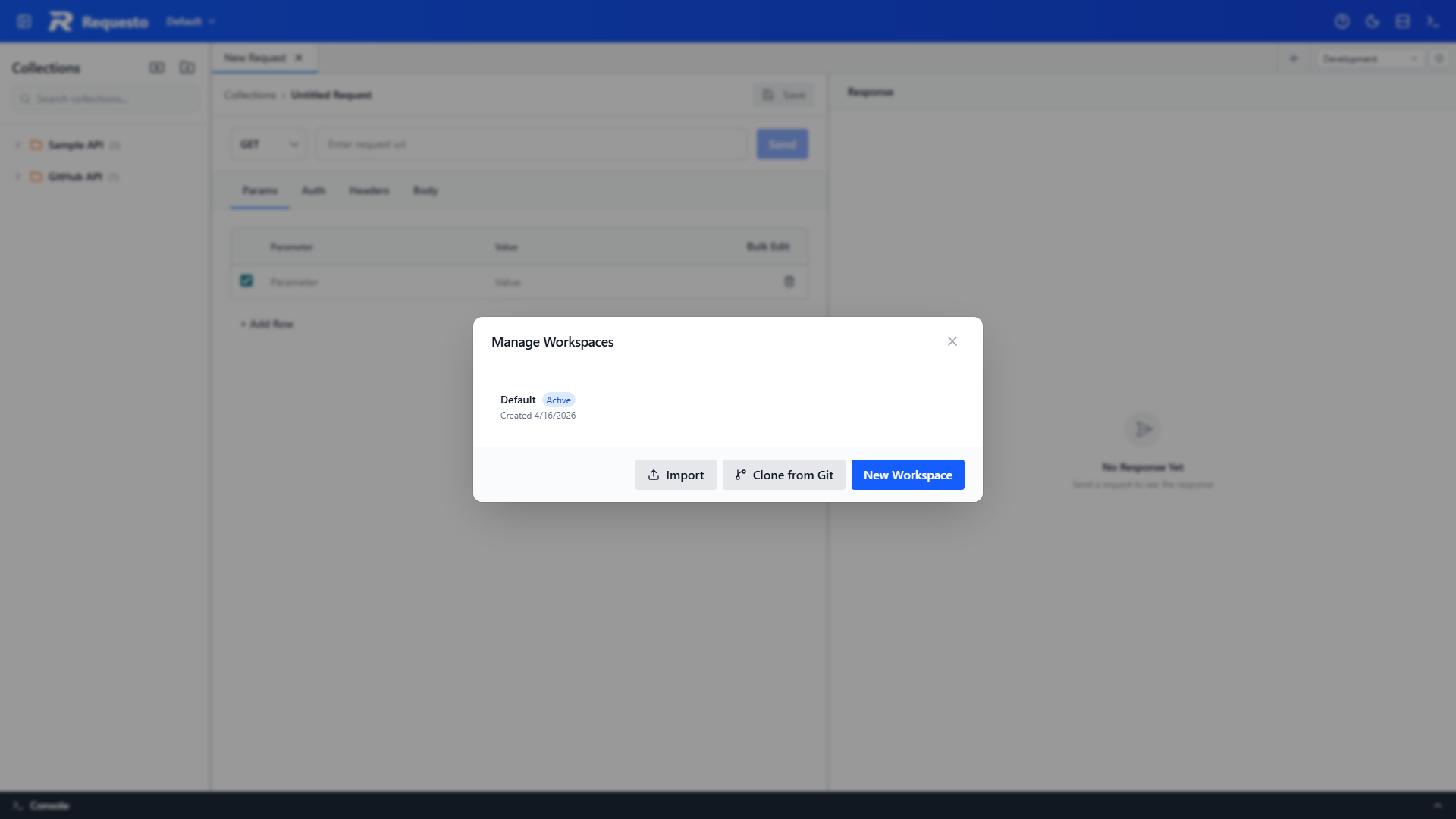
From here you can:
- Rename a workspace by clicking the pencil icon, which opens a rename dialog
- Remove a workspace from the list (with confirmation). This removes it from your workspace list only - the folder and its files stay on disk and it can be re-added later. You cannot remove the last remaining workspace.
- Export a workspace as a JSON bundle containing all its collections, environments, and OAuth configs
- Import a workspace from a previously exported JSON file (via Add Workspace → Import File)
Renaming a Workspace
Click the pencil icon next to a workspace in either the workspace switcher or the workspace manager. A dialog will appear where you can enter the new name and confirm.
Data Isolation
Each workspace stores its data inside a .requesto/ subdirectory, with one file per item (collection, environment, OAuth config, GraphQL schema profile) so git diffs stay small and merge conflicts are rare:
| Data | Location | Shared via git |
|---|---|---|
order.json | .requesto/ | Yes |
collections/<collection>.json | .requesto/ | Yes (one file per collection) |
environments/<environment>.json | .requesto/ | Yes (one file per environment) |
oauth-configs/<config>.json | .requesto/ (no secrets) | Yes (one file per config) |
graphql-schemas/<profile>.json | .requesto/ | Yes (one file per profile) |
mock-endpoints/<endpoint>.json | .requesto/ | Yes (one file per mock endpoint) |
mock-data/<endpoint-id>.json | .requesto/local/ | No |
active-environment.json | .requesto/local/ | No |
history.json | .requesto/local/ | No |
environments.local.json | .requesto/local/ | No |
oauth-secrets.json | .requesto/local/ | No |
oauth-tokens.json | .requesto/local/ | No |
Older monolithic files (collections.json, environments.json, oauth-configs.json, graphql-schemas.json) are split into this layout automatically the next time the app starts.
The .requesto/local/ directory holds data that should stay local to your machine. Every workspace gets a .requesto/.gitignore automatically (created on workspace creation, clone, git init, and server startup) that excludes the local/ subdirectory from version control. This means Requesto can safely coexist with an existing git project — only the .requesto/ folder is added to your repository.