

Console & Logging
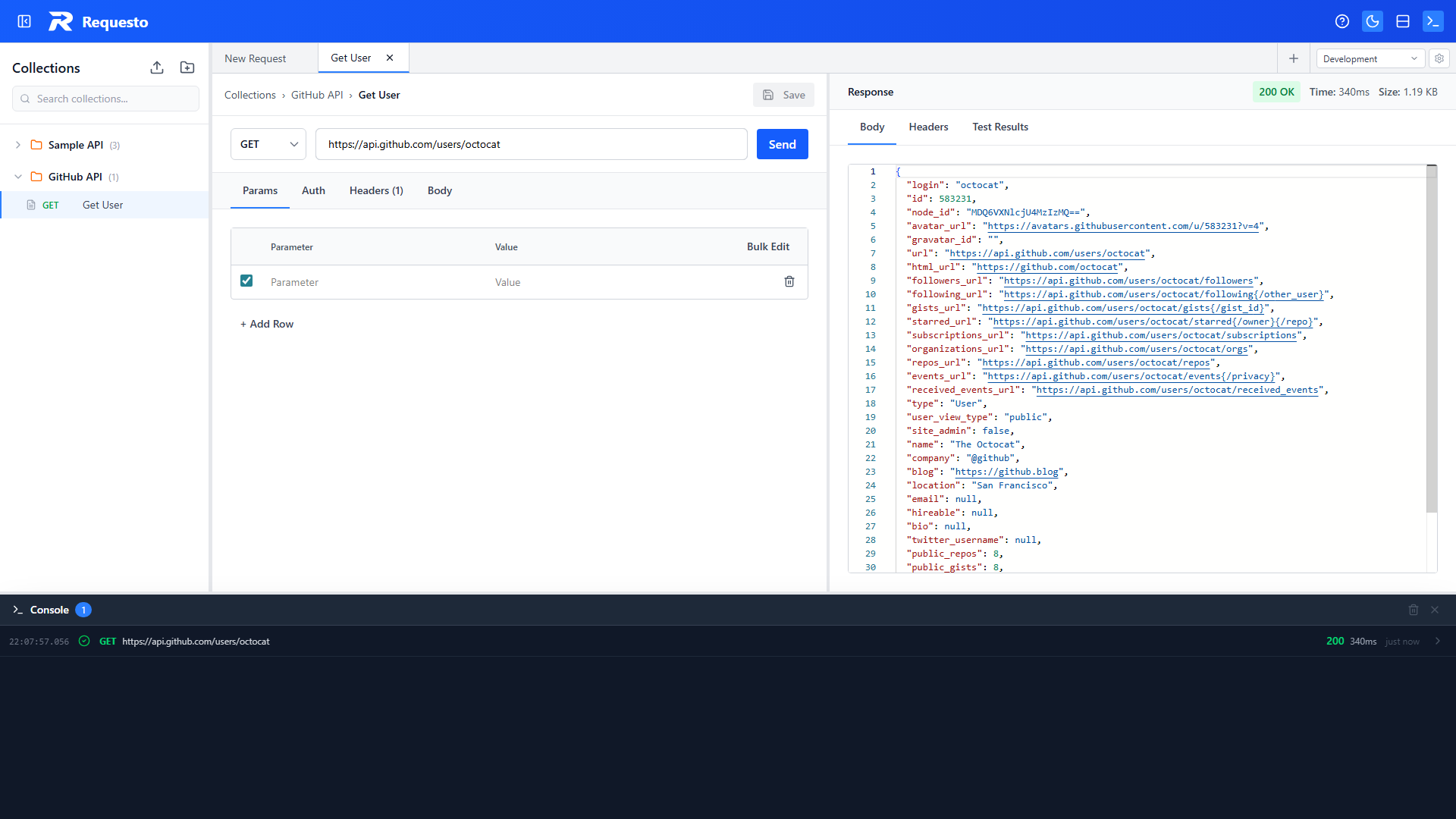
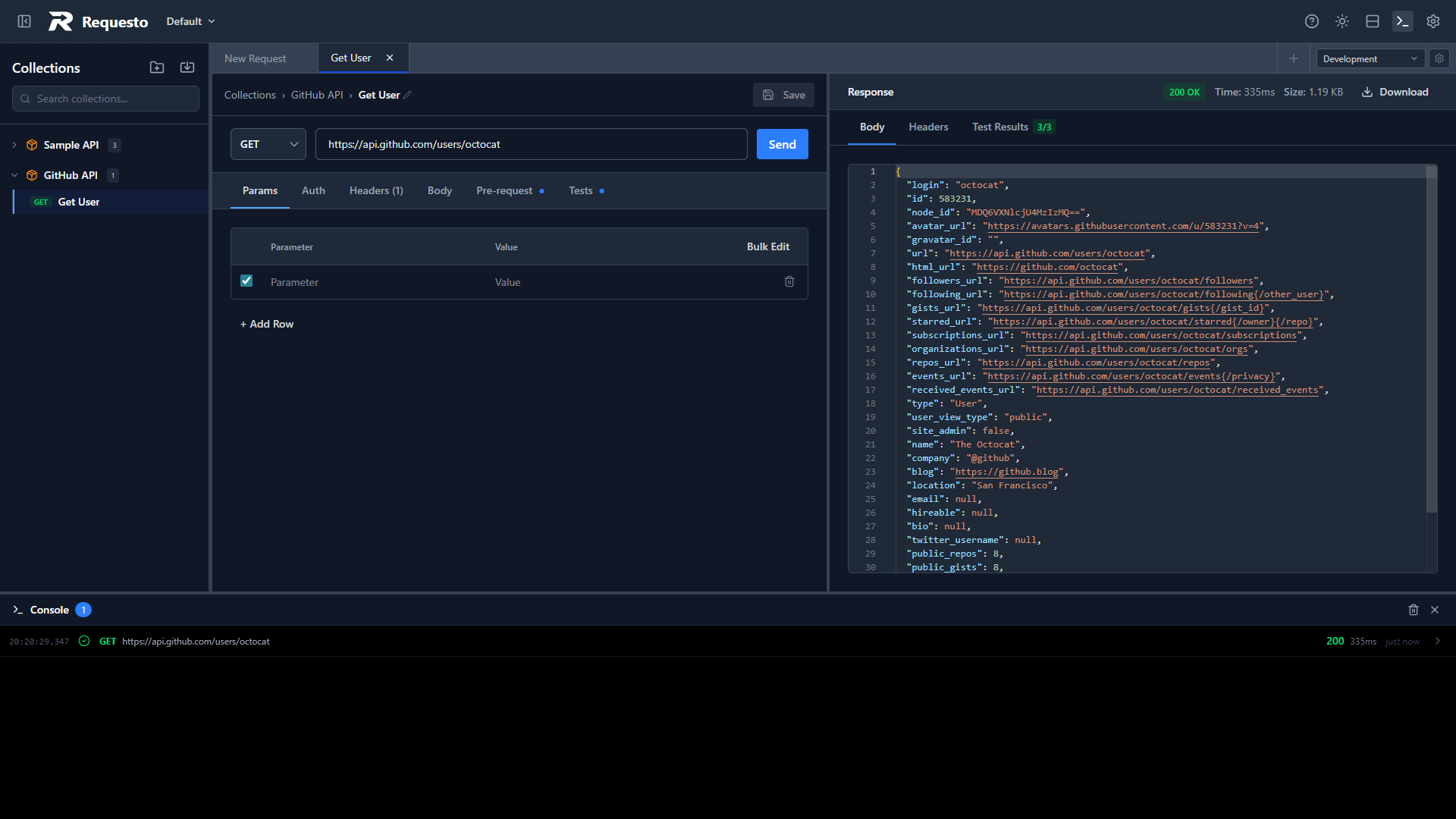
The console panel logs every request and response so you can inspect what was actually sent and received.
Opening the Console
Click the Console bar at the bottom of the request view to expand it. Drag the top edge to resize. Click again (or the X) to collapse.
How Logs Work
Each time you send a request, the console creates a group with up to four entries:
- Request (blue) - method, URL, headers, and body as sent (after variable substitution)
- Response (green) - status code, headers, and response body
- Error (red) - if the request failed (network error, timeout, etc.)
- Info (gray) - e.g. a test summary line ("Tests: 3/3 passed") for each send
Groups are shown newest-first. Each group shows the method, URL, status code, a duration, and a relative timestamp ("2s ago", "5m ago").
Expanding a Group
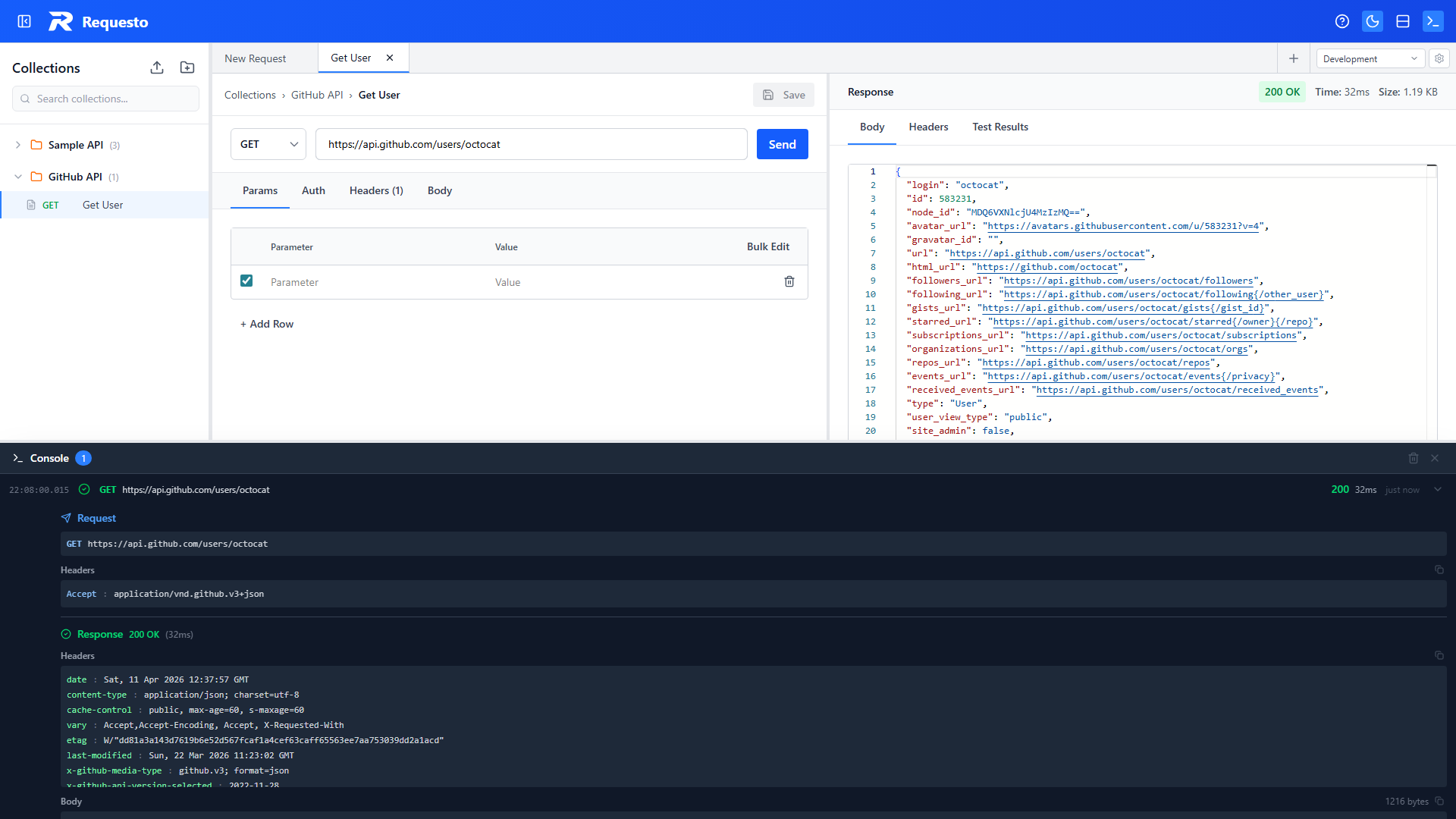
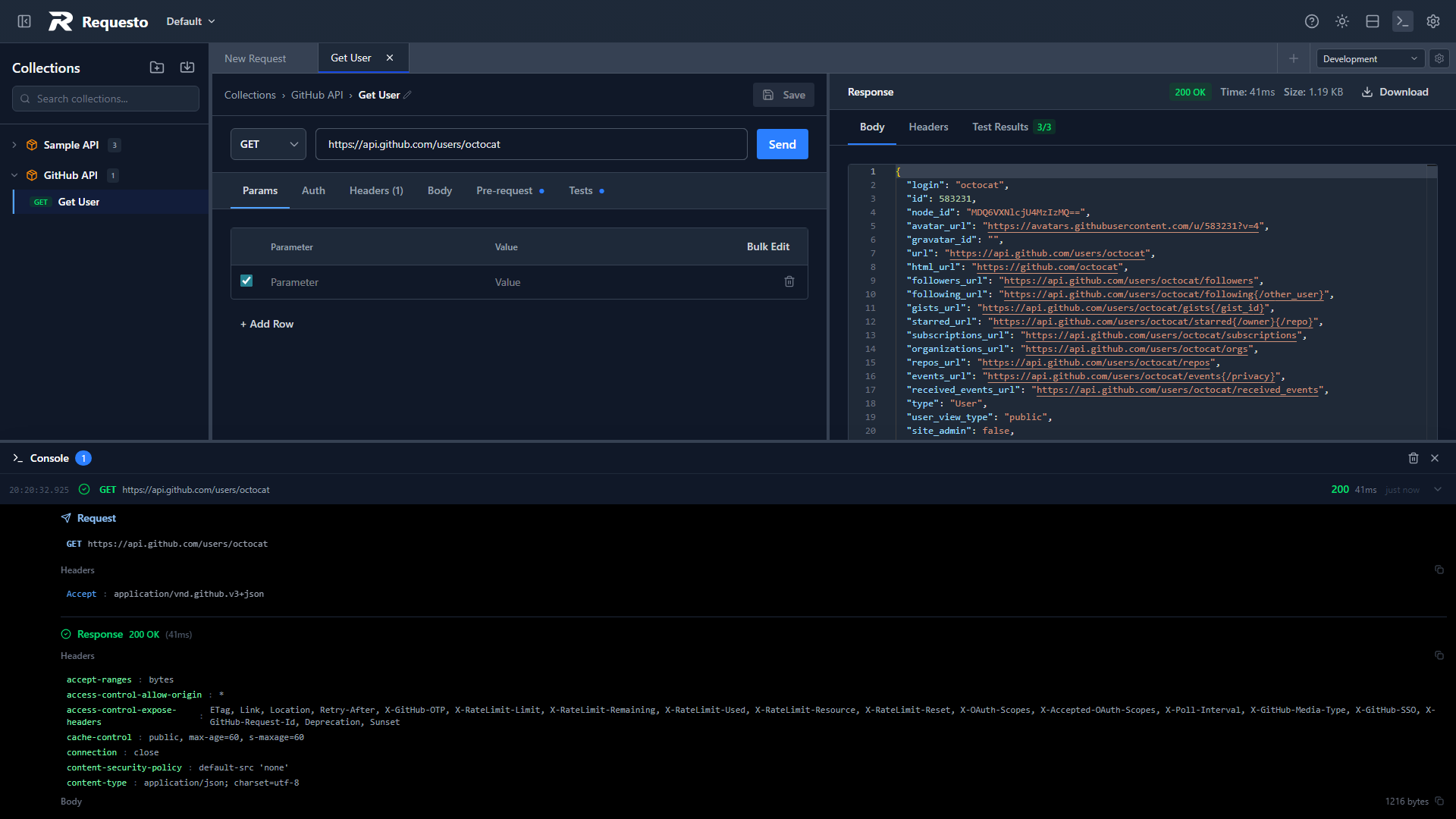
Click a group row to expand it. Inside you'll see a section for each log entry (request, response, error, info).
The expanded view shows:
- Request: method, URL, headers (formatted key: value), and body
- Response: status code with color coding, response headers, body size, and body (pretty-printed if JSON)
- Error: error message
Authorization headers are highlighted and truncated as a reminder that they contain credentials.
Status Colors
| Status Range | Color |
|---|---|
| 2xx | Green |
| 3xx | Yellow |
| 4xx | Orange |
| 5xx | Red |
Copy to Clipboard
Expanded log entries have copy buttons: headers are copied as formatted key: value lines, and the response body is copied as the raw string.
Clearing Logs
Click the trash icon in the console header to clear all logs from the current session.
Storage
The backend keeps the last 100 request/response records in the active workspace's .requesto/local/history.json (excluded from git). Console logs in the frontend are held in memory for the current session.