

Git Integration
Requesto has built-in git support so you can version control your workspace data and share it with a team. Git operations run through the backend using the git installation on your machine.
Requirements
Git must be installed and available on the system PATH. Requesto checks for this automatically and shows a warning if git is not found.
Initializing a Repository
If your workspace is not already a git repository, you can initialize one from the git panel. This runs git init in the workspace directory and creates .requesto/.gitignore, which excludes the local/ subdirectory containing local-only data like request history and OAuth secrets.
Cloning a Repository
You can create a new workspace by cloning a git repository. In the workspace switcher, click Add Workspace..., choose Clone from Git, then enter the repository URL and an optional access token for private repos.
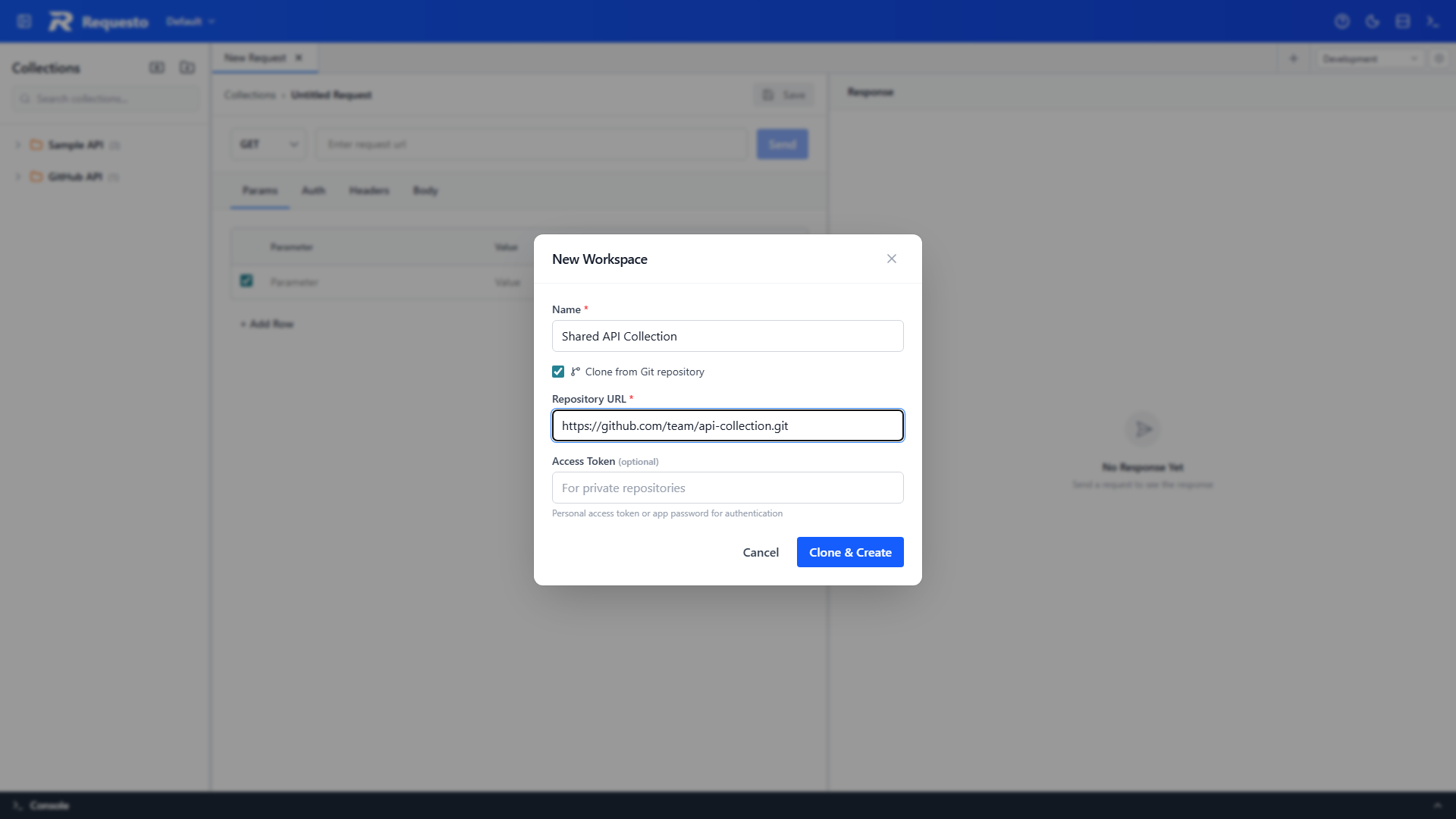
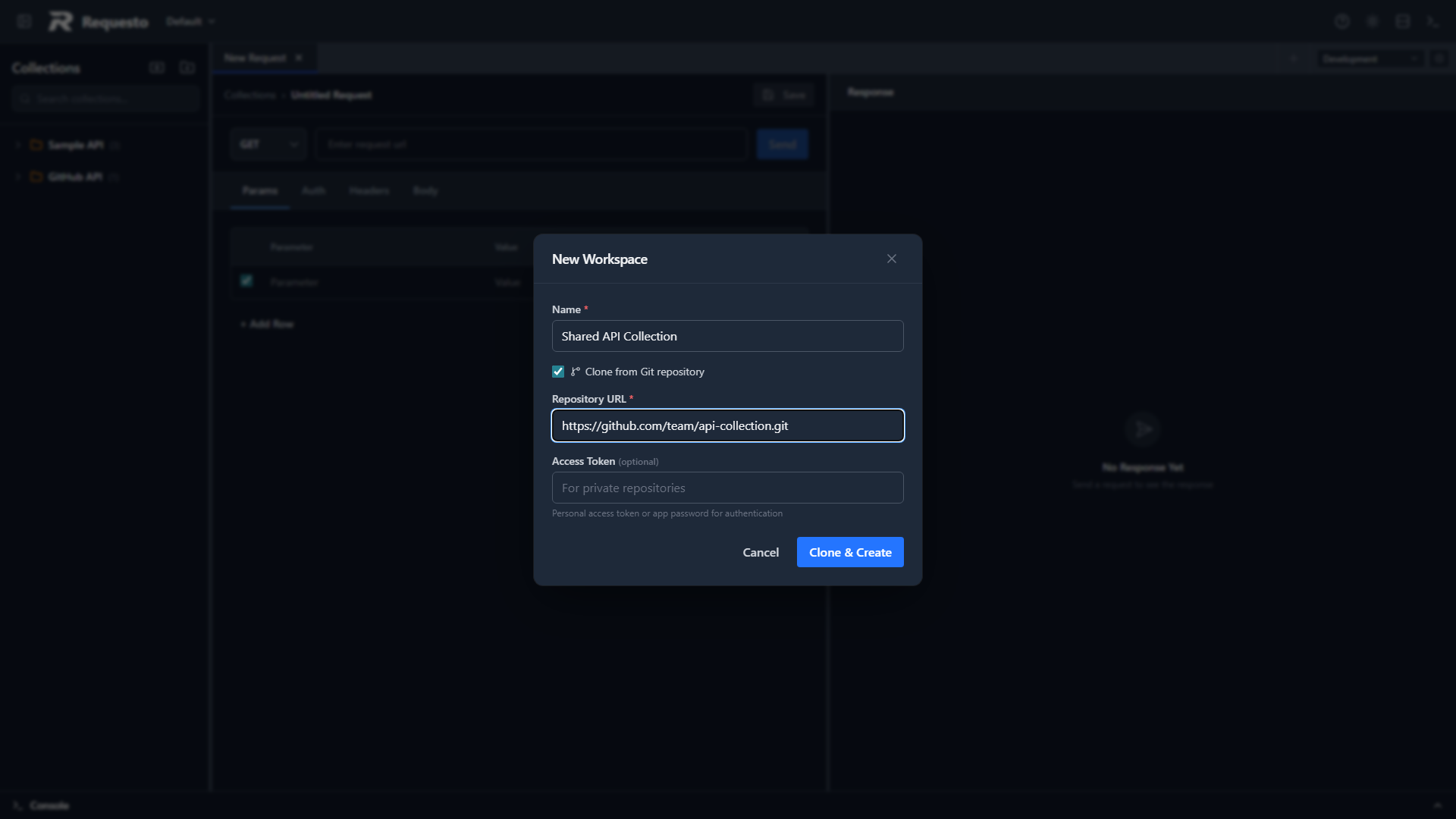
The repository is cloned into the workspaces/ directory and registered as a new workspace. Git operations (commit, push, pull, branch management) are available immediately. See Workspaces for more on workspace management.
Git Status
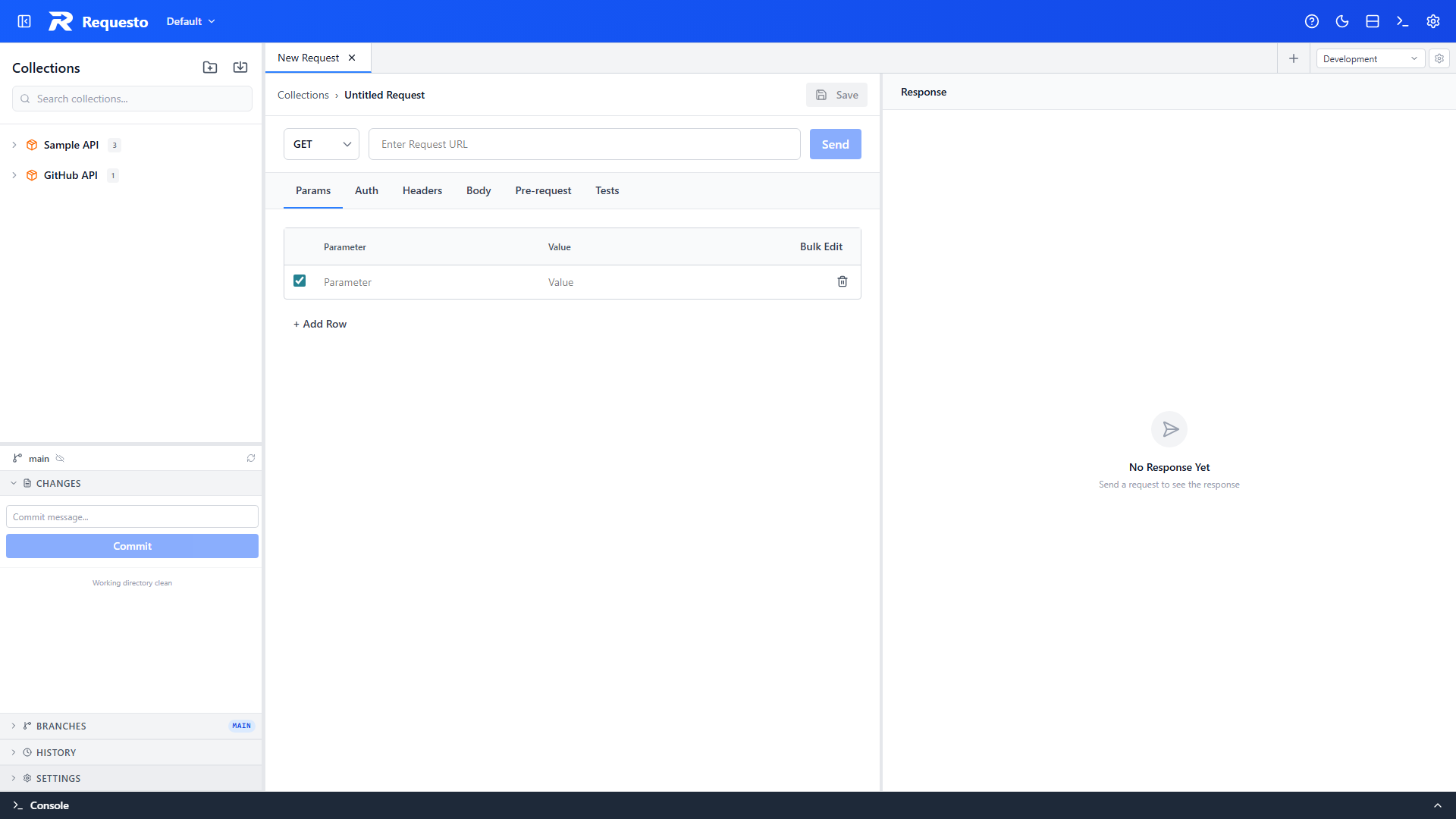
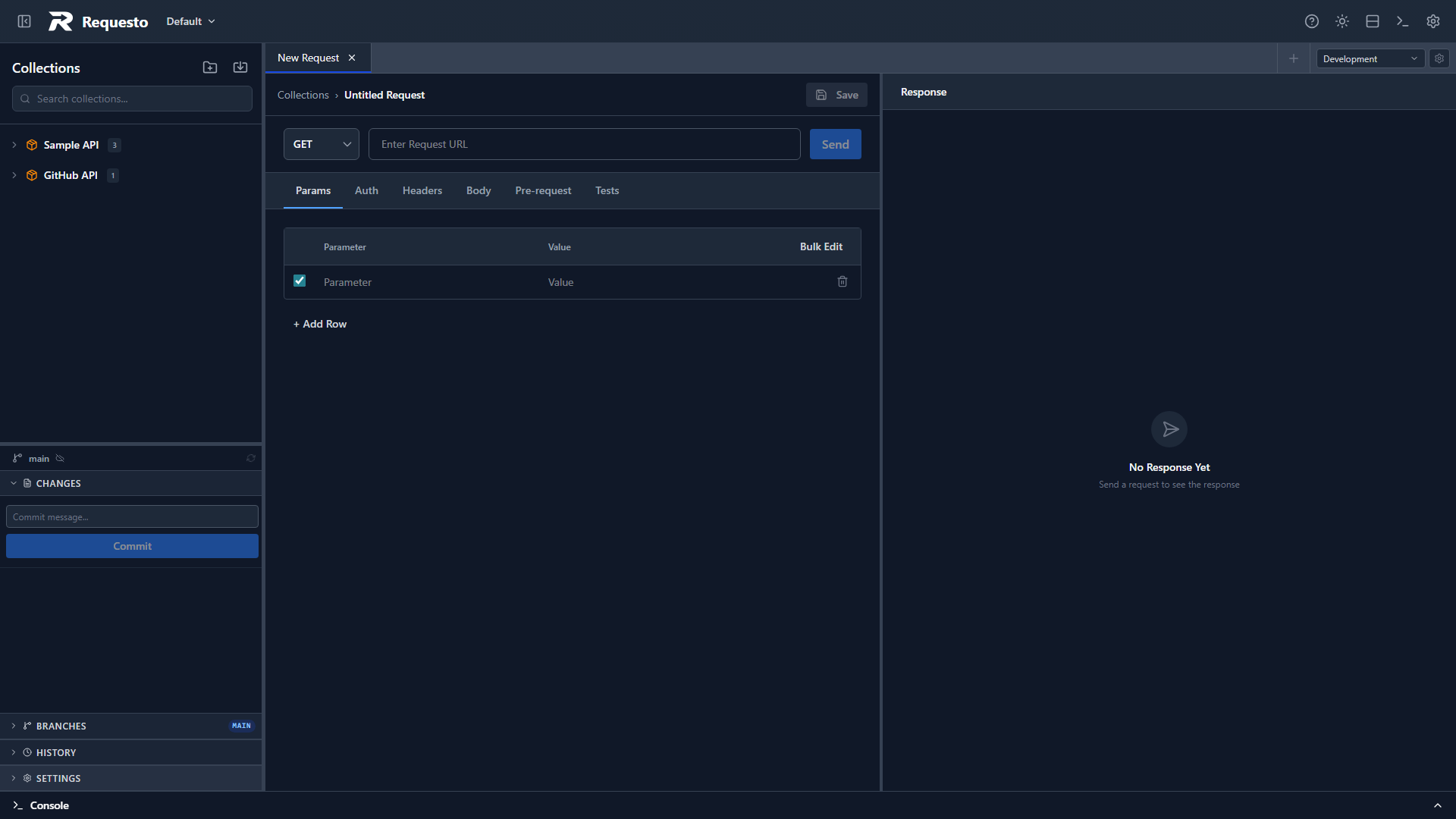
The workspace switcher shows a branch icon next to workspaces that are git repositories. The git panel displays the current branch, ahead/behind commit counts, and the status of changed files. A git status bar at the bottom of the sidebar shows the branch, changed-file count, and quick pull/push/refresh actions.
Status is refreshed automatically: it fetches from the remote on each check, polls periodically, and refreshes when you change workspace data.
The status view only shows Requesto-owned files (collections, environments, OAuth configs, and the .requesto/ directory). Files belonging to the rest of your project are intentionally hidden, so Requesto works cleanly inside an existing repository without polluting the diff view.
Committing Changes
Click Commit in the git panel, enter a commit message, and confirm. Only Requesto-owned files are staged automatically — the .requesto/ directory (which contains the per-item collections/, environments/, and oauth-configs/ folders plus their order.json manifest). Your project source code is never touched.
Push always targets the origin remote. If you push with uncommitted changes and no new commits, Requesto prompts you for a commit message first so you can commit and push in one step.
Push and Pull
Push sends your commits to the remote. Pull fetches and merges changes from the remote. If there are uncommitted local changes when you pull, they are automatically stashed and re-applied after the merge.
Branch Management
The Branches section of the git panel lists all local branches. The currently checked-out branch is highlighted with a checkmark.
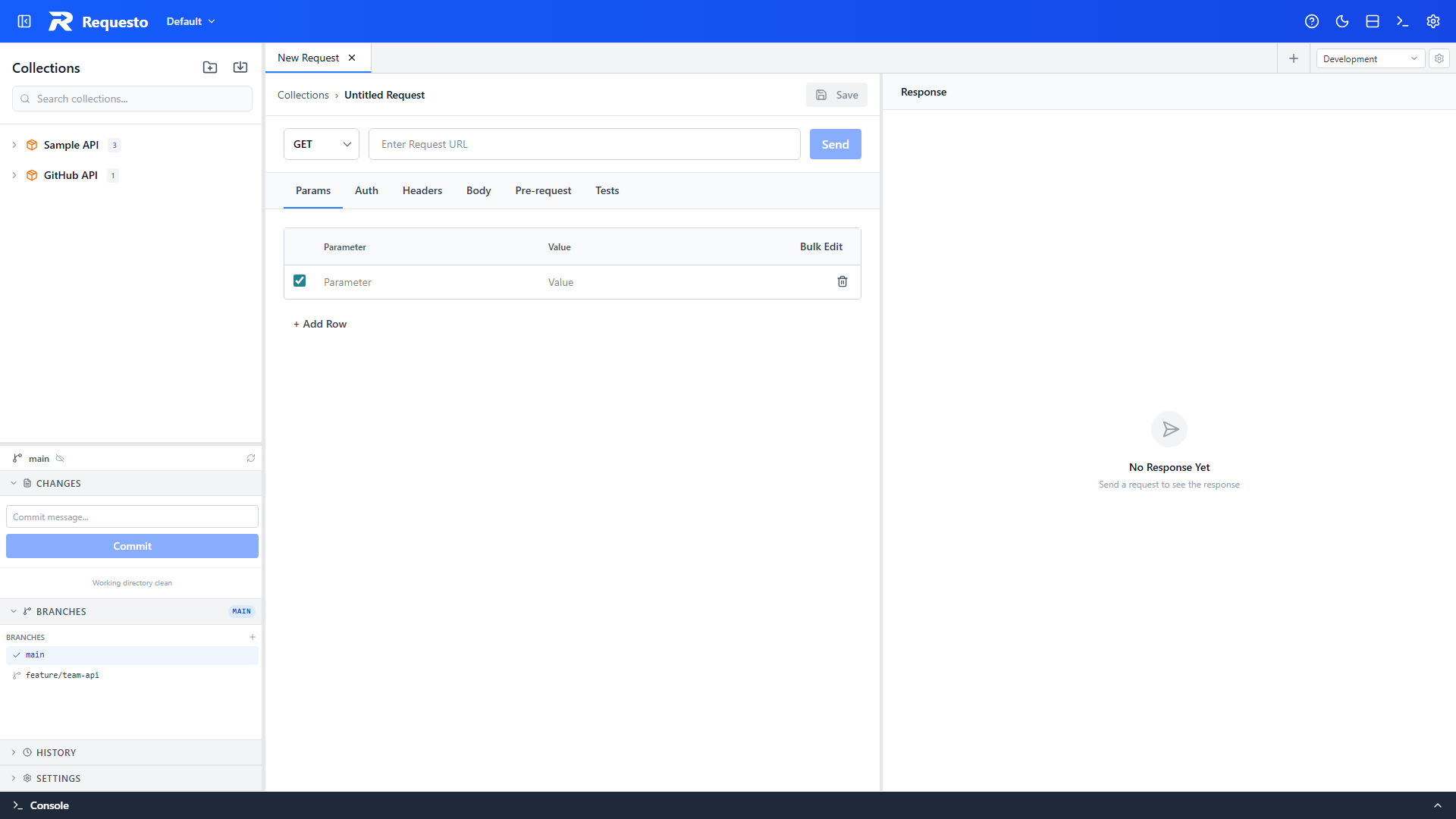
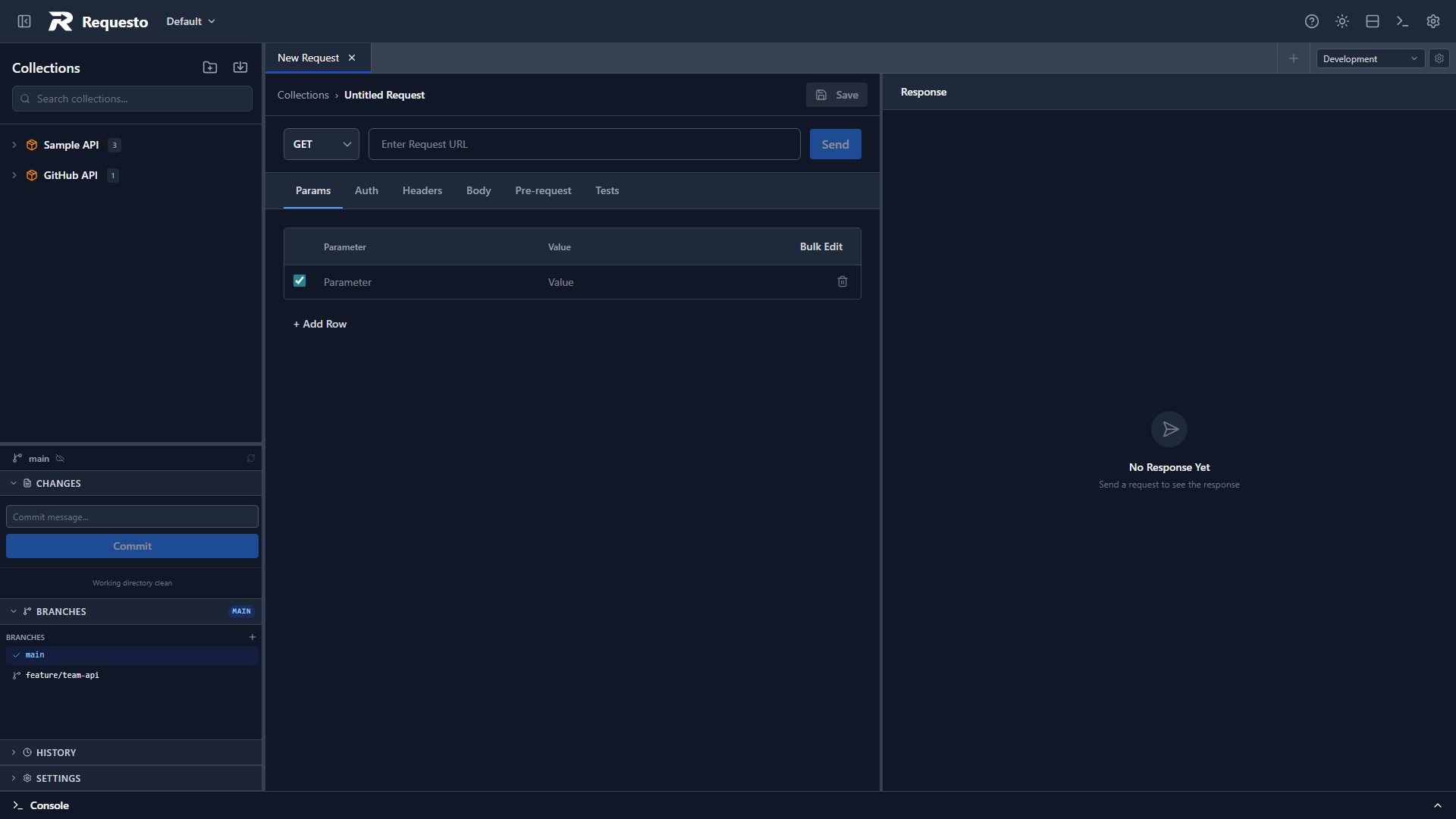
- Checkout — click a branch name to switch to it. Requesto will reload your collections and environments from the new branch.
- Create — click the + button to create a new branch from the current HEAD. You can also right-click any branch and choose New branch from here to branch from a specific point.
- Rename — right-click a branch and choose Rename.
- Delete — right-click a branch and choose Delete. The active branch cannot be deleted.
WARNING
Switching branches requires a clean working directory. Commit or discard any pending changes before checking out a different branch.
Conflict Resolution
If a pull results in merge conflicts, the git panel shows the conflicted files and lets you apply one strategy to all of them at once:
- Keep Local - keep your local version of every conflicted file (ours)
- Accept Incoming - accept the remote version of every conflicted file (theirs)
Clicking an individual conflicted file opens a read-only diff viewer so you can inspect the difference before choosing. After resolving, commit the result.
Commit History and Diffs
The git panel also shows recent commits with their hash, message, author, and relative date. Click any changed file in the status view to see its diff in a dialog before committing.
Remotes
The git panel lists configured remotes. You can add a new remote by providing a name and URL. This is useful if you initialized a local repository and want to connect it to a remote host.
What Gets Committed
| File | Committed | Why |
|---|---|---|
.requesto/order.json | Yes | Display order of collections, environments, and configs |
.requesto/collections/ | Yes | Shared API definitions (one file per collection) |
.requesto/environments/ | Yes | Shared environment configs (one file per environment) |
.requesto/oauth-configs/ | Yes | OAuth configs without secrets |
.requesto/mock-endpoints/ | Yes | Shared mock server endpoints (one file per endpoint) |
.requesto/local/mock-data/ | No | Dynamic mock datasets changed by test traffic |
.requesto/local/active-environment.json | No | Your active environment selection |
.requesto/local/history.json | No | Local request history |
.requesto/local/oauth-secrets.json | No | Contains client secrets |
Workspace data is stored inside the .requesto/ subdirectory of your workspace folder. A .requesto/.gitignore file is created automatically when you initialize or clone a repository — it excludes the local/ subdirectory so that sensitive data and request history stay on your machine.
This layout is designed to work inside existing git projects. You can point Requesto at a directory that already has source code; only the .requesto/ folder will be touched.
Private Repositories
When cloning or pushing to a private repository, provide a personal access token or app password. The token is used for authentication during git operations over HTTPS.