

Collections & Folders
Organize API requests into collections and folders.
Collections
A collection is a group of related requests. Click the New Collection button (folder-plus icon) in the sidebar header to create one - give it a name and optional description.
Each collection can contain requests at the top level and folders for further grouping:
E-commerce API
├── List Products (GET)
├── Products/
│   ├── Get Product (GET)
│   └── Create Product (POST)
└── Orders/
    ├── List Orders (GET)
    └── Create Order (POST)
Folders
Hover over a collection in the sidebar to reveal two icon buttons:
- New Folder - Create a new folder inside the collection
- Delete Collection - Remove the collection
Clicking New Folder opens a dialog where you can enter the folder name and confirm. You can also create subfolders by hovering over an existing folder and clicking its New Folder button.
New requests are added from the request editor's Save dialog - save into any collection or folder.
Multi-Select and Bulk Actions
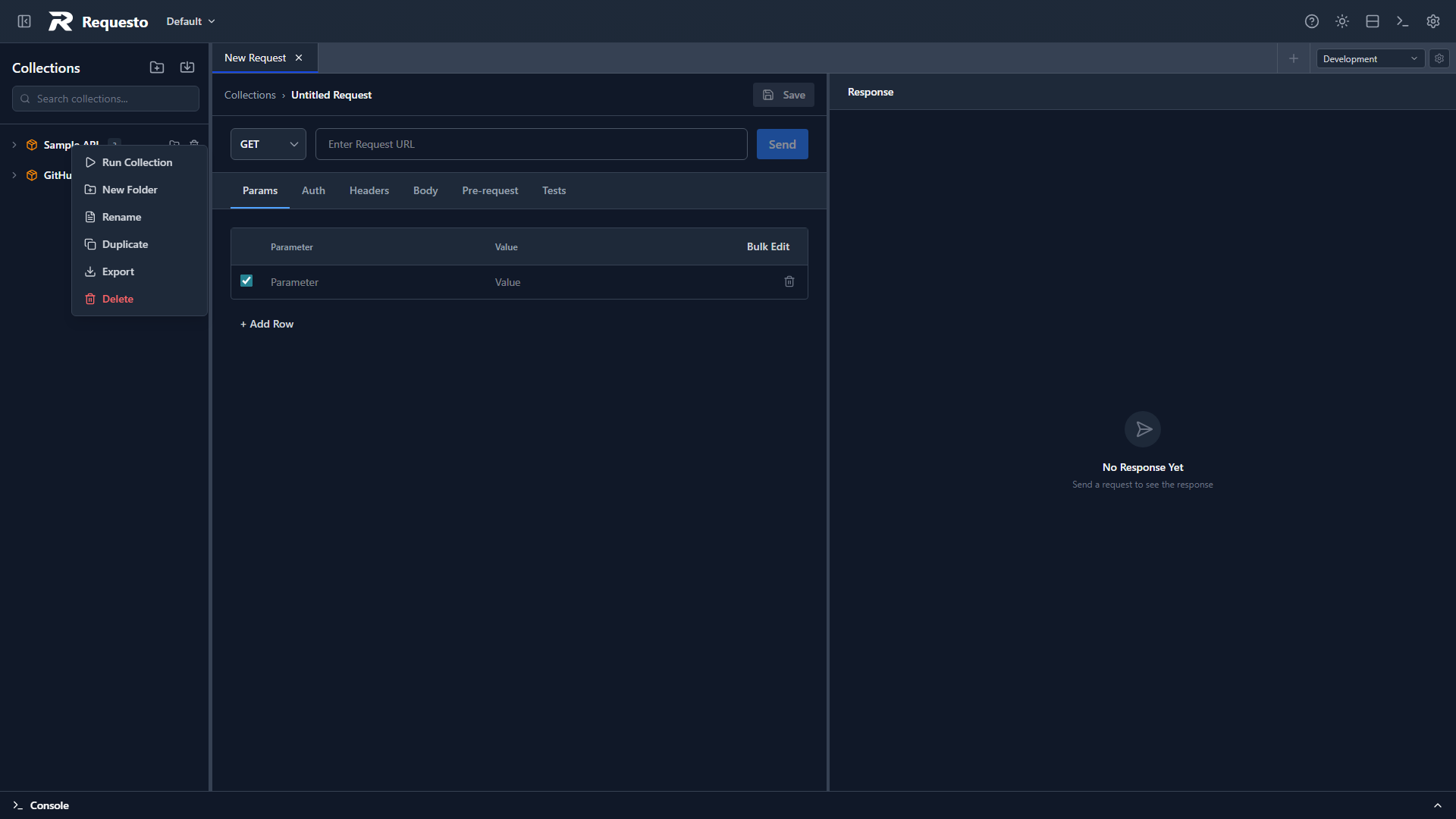
Ctrl+click (or Shift+click) requests to multi-select them. You can then drag the selection between folders, or right-click for bulk Duplicate (N) and Delete (N) actions. Collections, folders, and individual requests can each be duplicated from their context menus.
Drag and Drop
Reorder requests and folders within a collection by dragging them. You can move requests between folders or back to the collection root.
Context Menu
Right-click any collection, folder, or request in the sidebar:
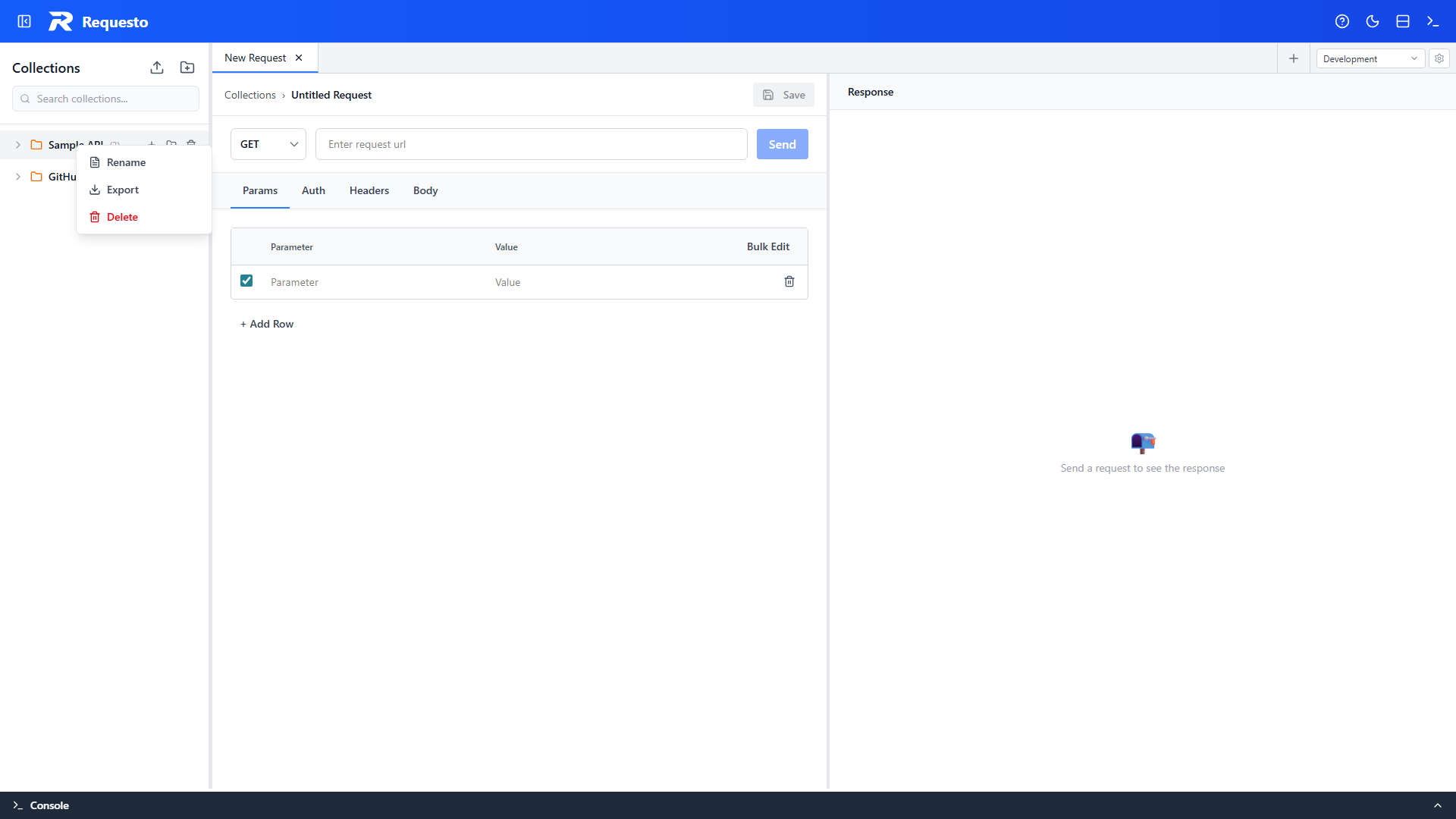
Collections: Run Collection, New Folder, Rename, Duplicate, Export, Sync from Spec / Unlink Spec (for OpenAPI-linked collections), and Delete.
Folders: Run Folder, New Subfolder, Rename, Duplicate, Export, and Delete.
Requests: Rename, Duplicate, Export, and Delete.
Import & Export
Import: Click the upload icon in the sidebar header and pick Import Collection, then select a JSON file. The collection is added to the sidebar.
Export: Right-click a collection, folder, or request and choose Export. The exported JSON includes all nested folders and requests.
Environment import and export works the same way from the environment manager (see Environments).
OpenAPI Import
You can also generate a collection from an OpenAPI spec. See OpenAPI Import & Sync for details.
Saved Requests
A saved request stores:
- Request type (HTTP or GraphQL)
- URL (can include environment variables)
- HTTP method
- Headers, query parameters, body
- Authentication configuration
- Pre-request and test scripts
Click a saved request in the sidebar to open it. Edit it and click Save to save changes.
Search
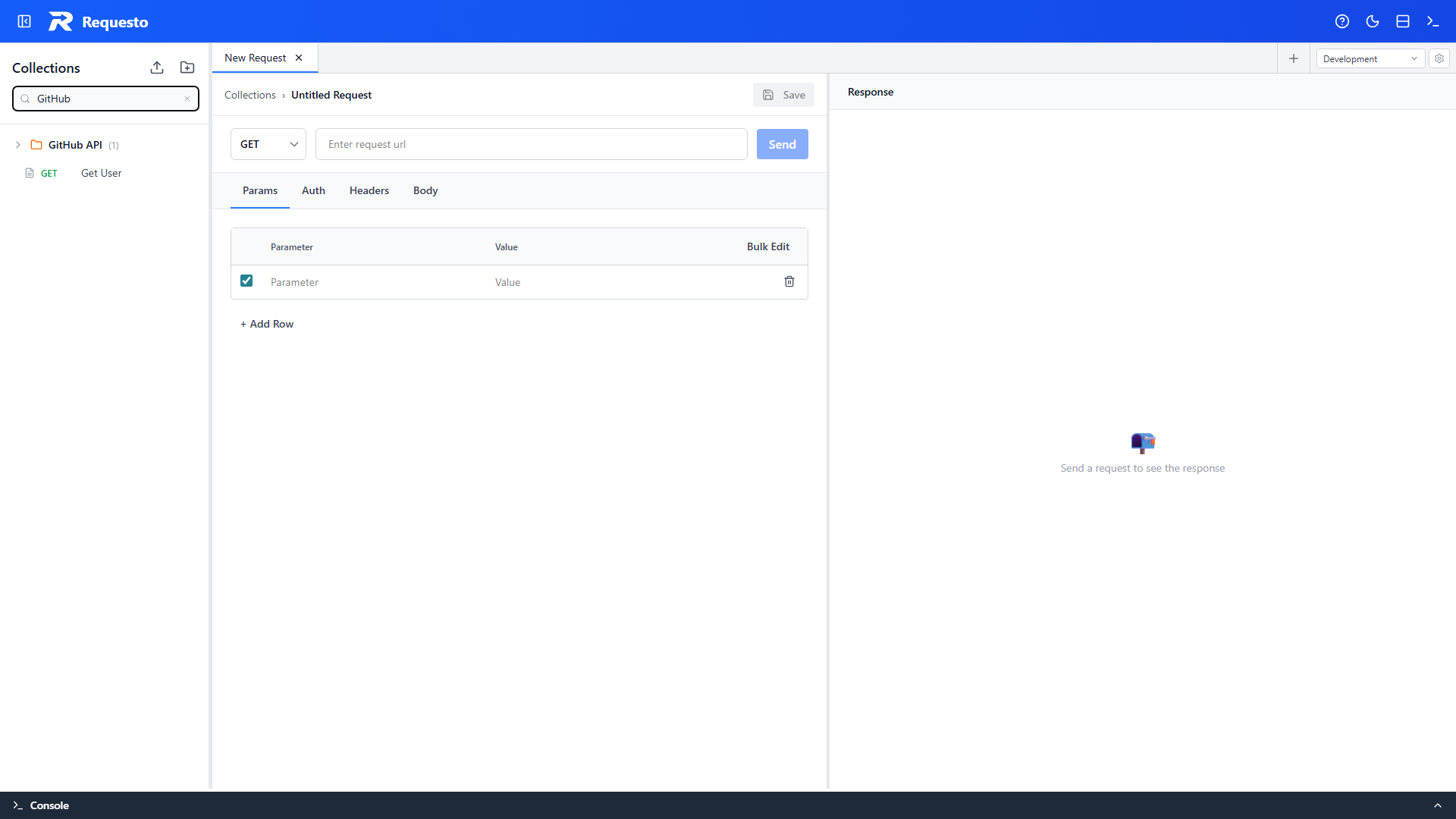
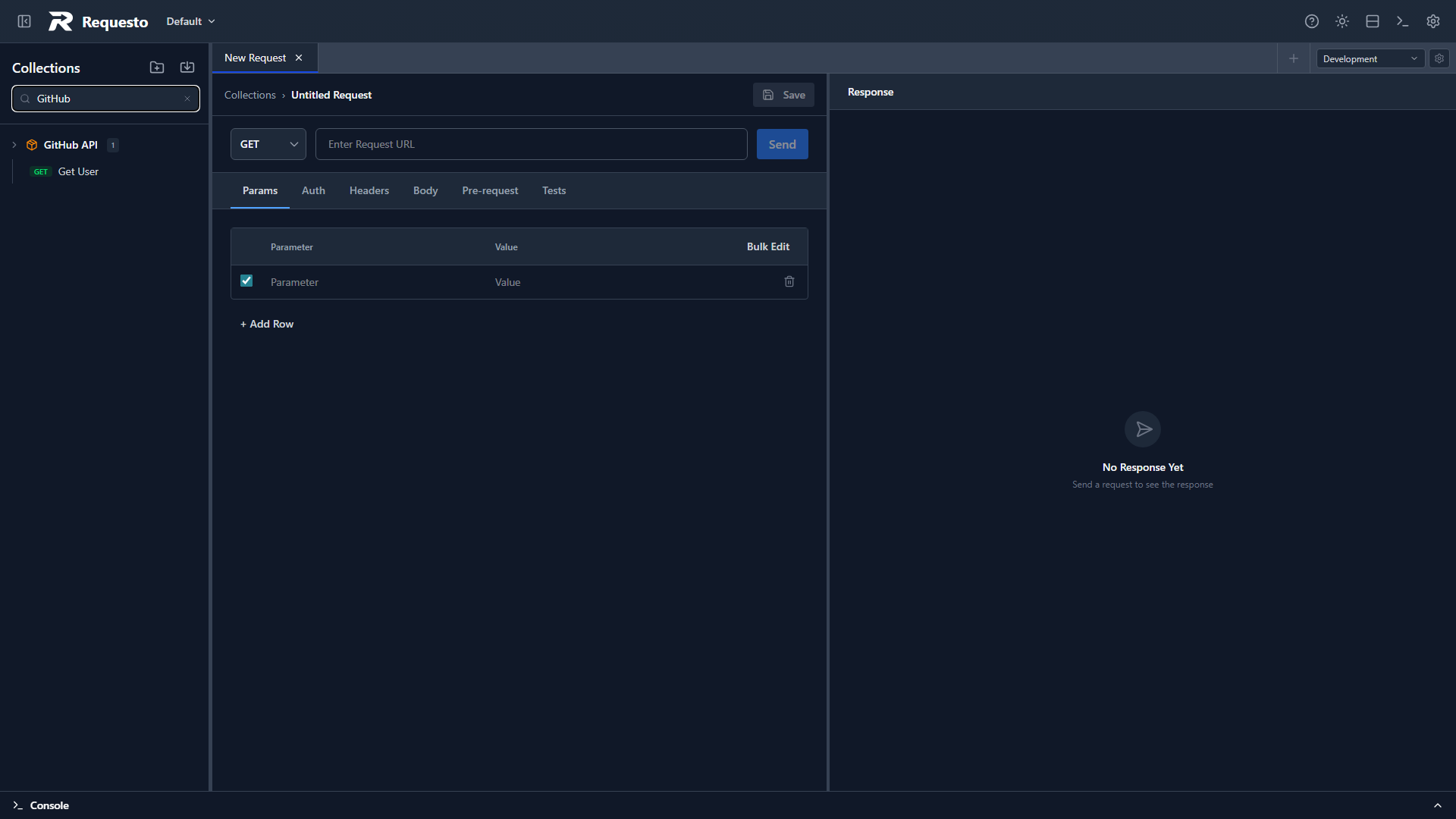
The search box at the top of the sidebar filters collections, folders, and requests by name or URL as you type.
Collection Runner
Run all requests in a collection or folder sequentially. Right-click a collection and choose Run Collection, or right-click a folder and choose Run Folder.
The runner dialog shows each request with its pass/fail status, response details, and test results. Pre-request scripts and test scripts run for every request, and environment changes chain forward through the run.
See Collection Runner for full details.