

Environments
Switch between sets of variables (dev, staging, production) without editing individual requests.
How It Works
An environment is a named collection of key-value variables. When you send a request, the backend substitutes any {{variable_name}} placeholders in the URL, headers, and body with the values from the active environment.
URL:    {{base_url}}/users/{{user_id}}
Header: Authorization: Bearer {{api_token}}
If the active environment has base_url = https://api.example.com, user_id = 42, and api_token = sk_abc123, the outgoing request becomes:
GET https://api.example.com/users/42
Authorization: Bearer sk_abc123
Managing Environments
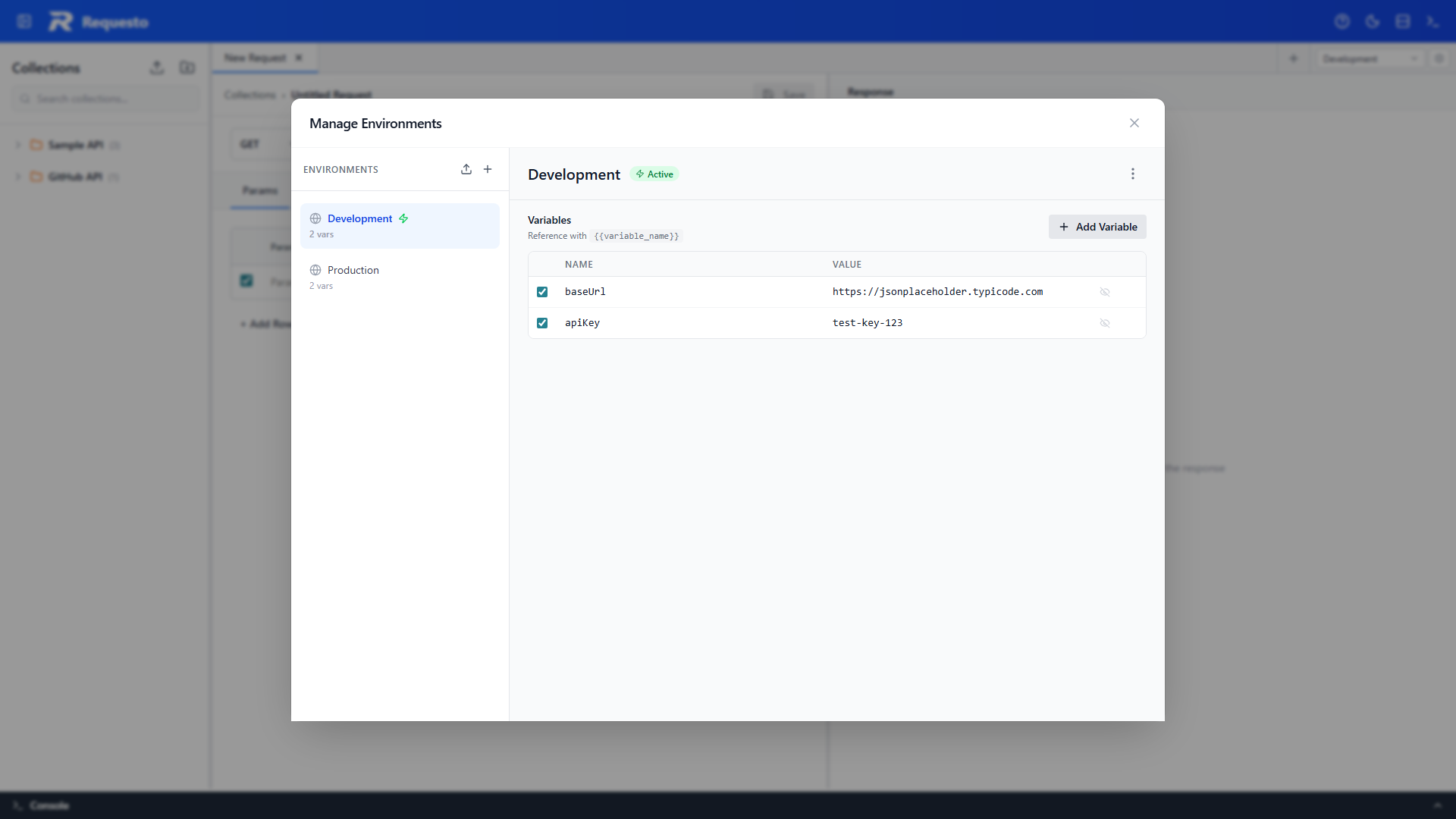
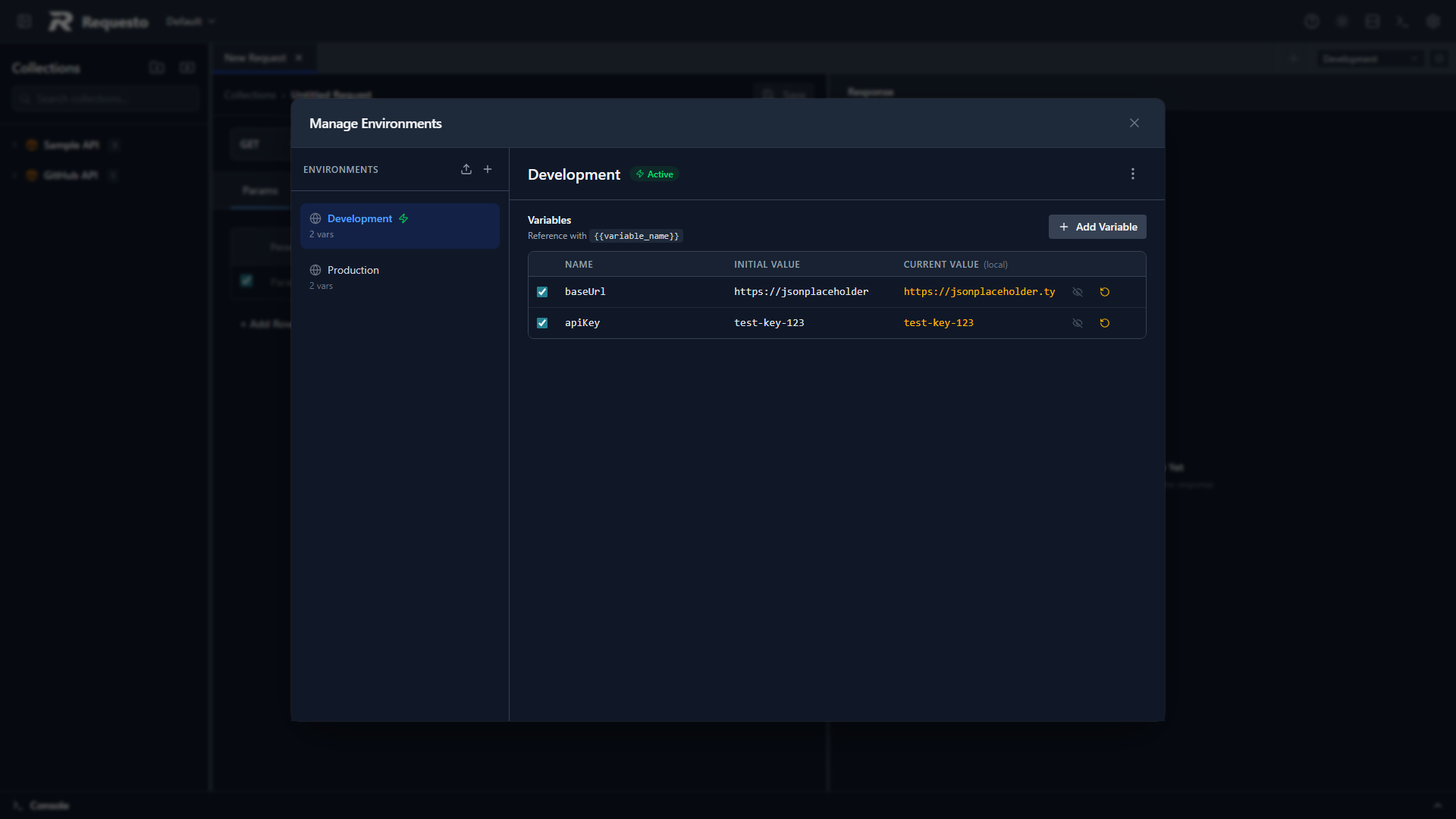
Open the Manage Environments dialog from the gear icon next to the environment selector in the tabs bar (or via Manage Environments in the selector dropdown).
Sidebar actions:
- New Environment - creates an empty environment
- Import - load an environment from a JSON file
Per-environment actions (in the ⋯ menu of the environment header, or right-click an environment in the list):
- Set Active - choose which environment supplies variable values
- Duplicate - copy an environment with all its variables
- Export - download the environment as a JSON file
- Delete - remove the environment (with confirmation; the last remaining environment cannot be deleted)
- Rename - edit its name in a dialog
Variables
Each variable has:
| Field | Description |
|---|---|
| Key | The name you reference with {{key}} |
| Value | The substituted value |
| Type | String, Number, or Boolean - controls how the value is emitted in JSON bodies and GraphQL variables (see Variable Types and JSON Bodies) |
| Enabled | Toggle - disabled variables are skipped during substitution |
| Secret | Toggle - masks the value in the UI (eye icon to reveal) |
Add variables in the editor table. Click the + row to add a new one, or remove with the trash icon.
Variable Types and JSON Bodies
Every variable has a type: String (default), Number, or Boolean. The editor's type dropdown auto-suggests as you type the value (e.g. 42 suggests Number, true suggests Boolean), and you can override it at any time. Scripts and CLI variables infer the type automatically - environment.set('count', 42) makes count a Number, and --var flag=true a Boolean.
The type only affects JSON request bodies and GraphQL variables. Because a JSON body must be valid before substitution, number and boolean variables are still written inside quotes - and the quotes are removed automatically when the request is sent:
| Template | Variable | Type | Sent as |
|---|---|---|---|
"count": "" | count = 42 | Number | "count": 42 |
"active": "" | active = true | Boolean | "active": true |
"name": "" | name = alice | String | "name": "alice" |
Without the quotes the body would not be valid JSON in the editor - "count": {{count}} cannot be parsed - so wrapping the placeholder in quotes is what keeps the template valid. During substitution the surrounding quotes are stripped for Number and Boolean variables so the value arrives with the correct JSON type, while String variables stay quoted.
The type is a hint, not a guarantee: if a Number variable's value is not a valid JSON number (e.g. zip = 02134, where leading zeros are not a JSON number literal), it falls back to being sent as a quoted string rather than corrupting the body.
A few additional rules:
- Placeholders that are only part of a value (e.g.
"user-") are always substituted as plain text inside the string - Unquoted placeholders (
"count": {{count}}) are inserted verbatim with no type handling - Outside JSON bodies - URLs, headers, form-data values, auth fields - values are substituted as plain text regardless of type
Variable Autocomplete
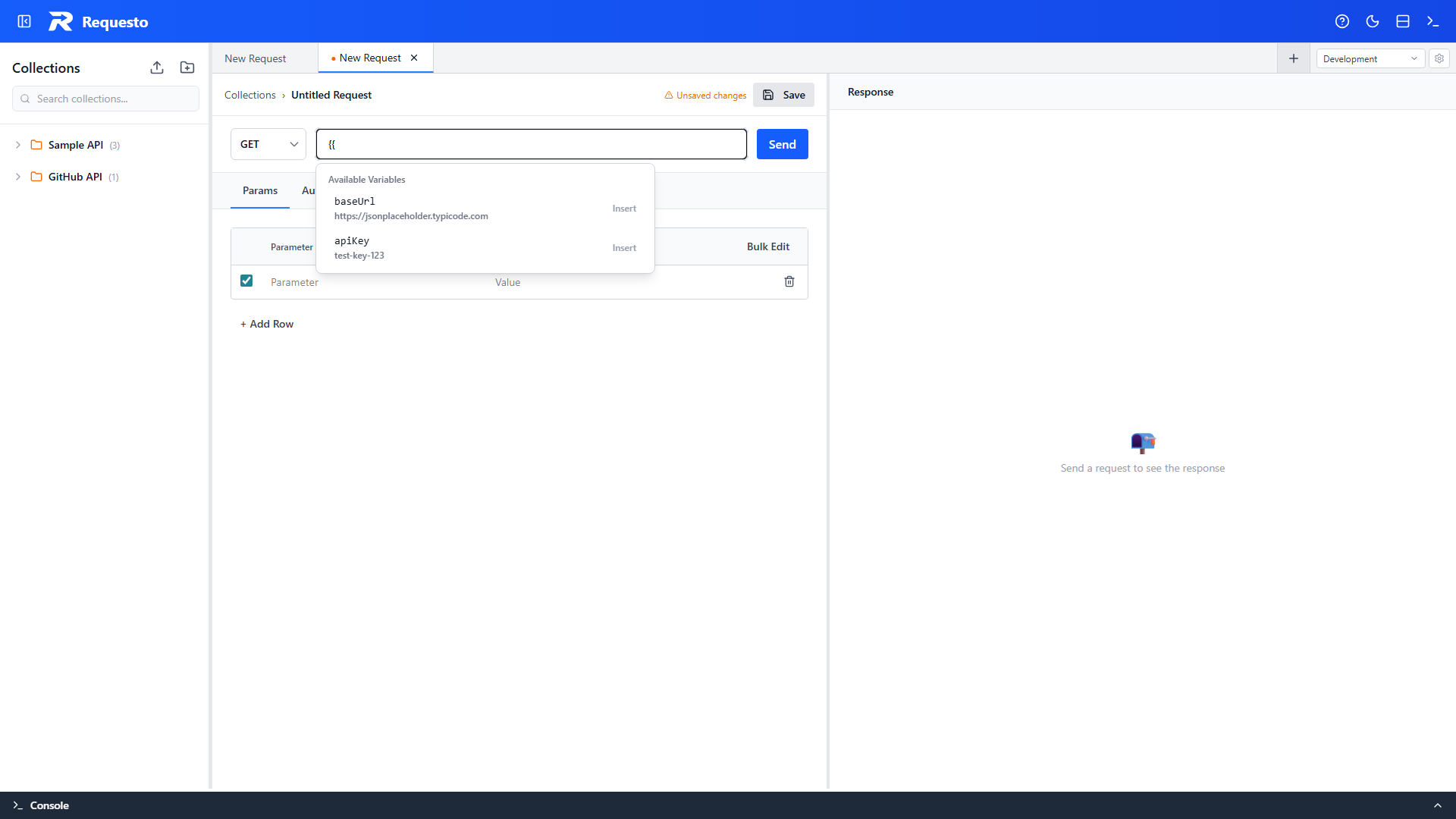
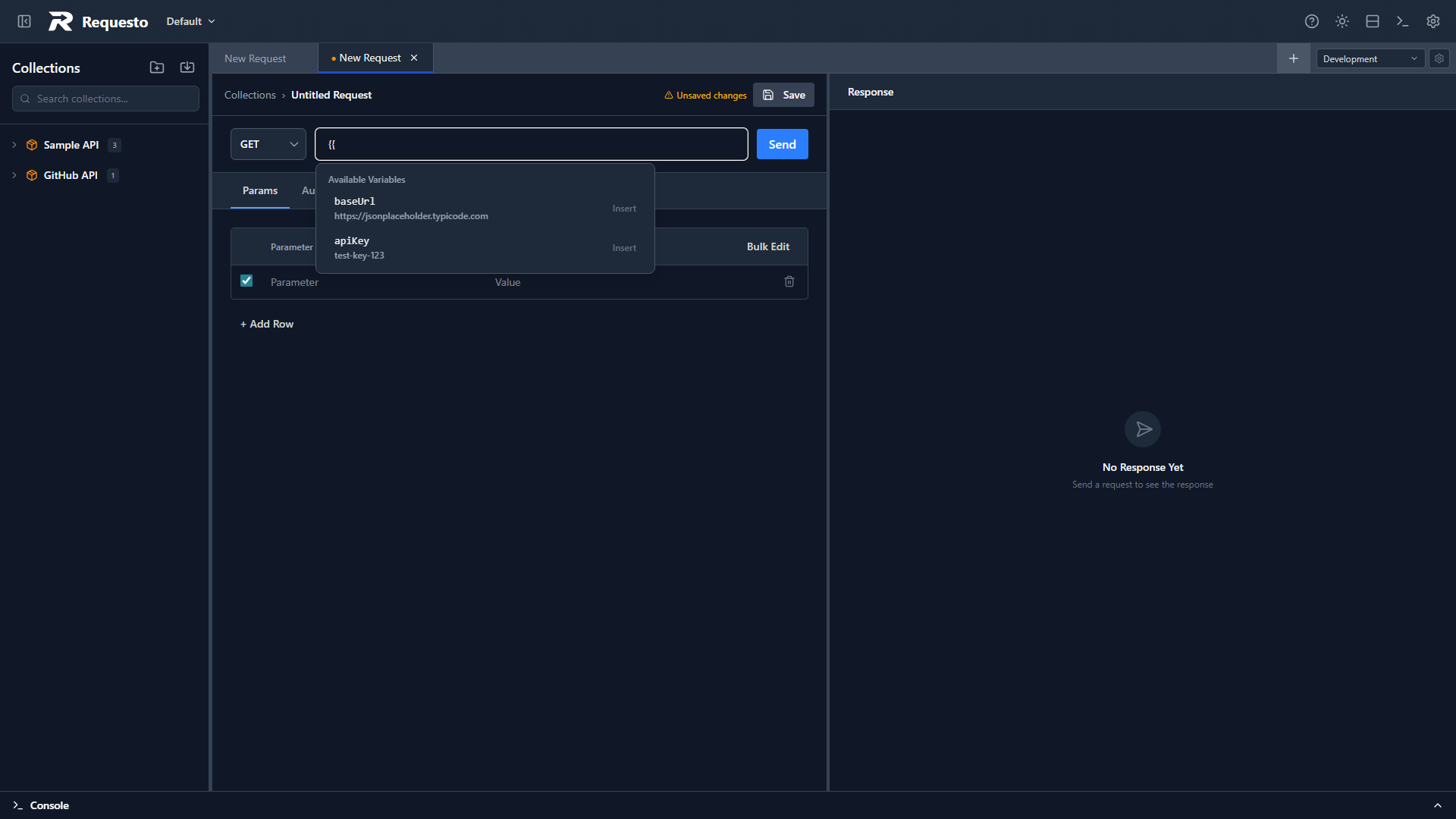
The VariableAwareInput fields throughout the app (URL bar, header values, etc.) show an autocomplete dropdown when you start typing a variable reference. It lists all variables from the active environment so you can pick the right name.
Switching Environments
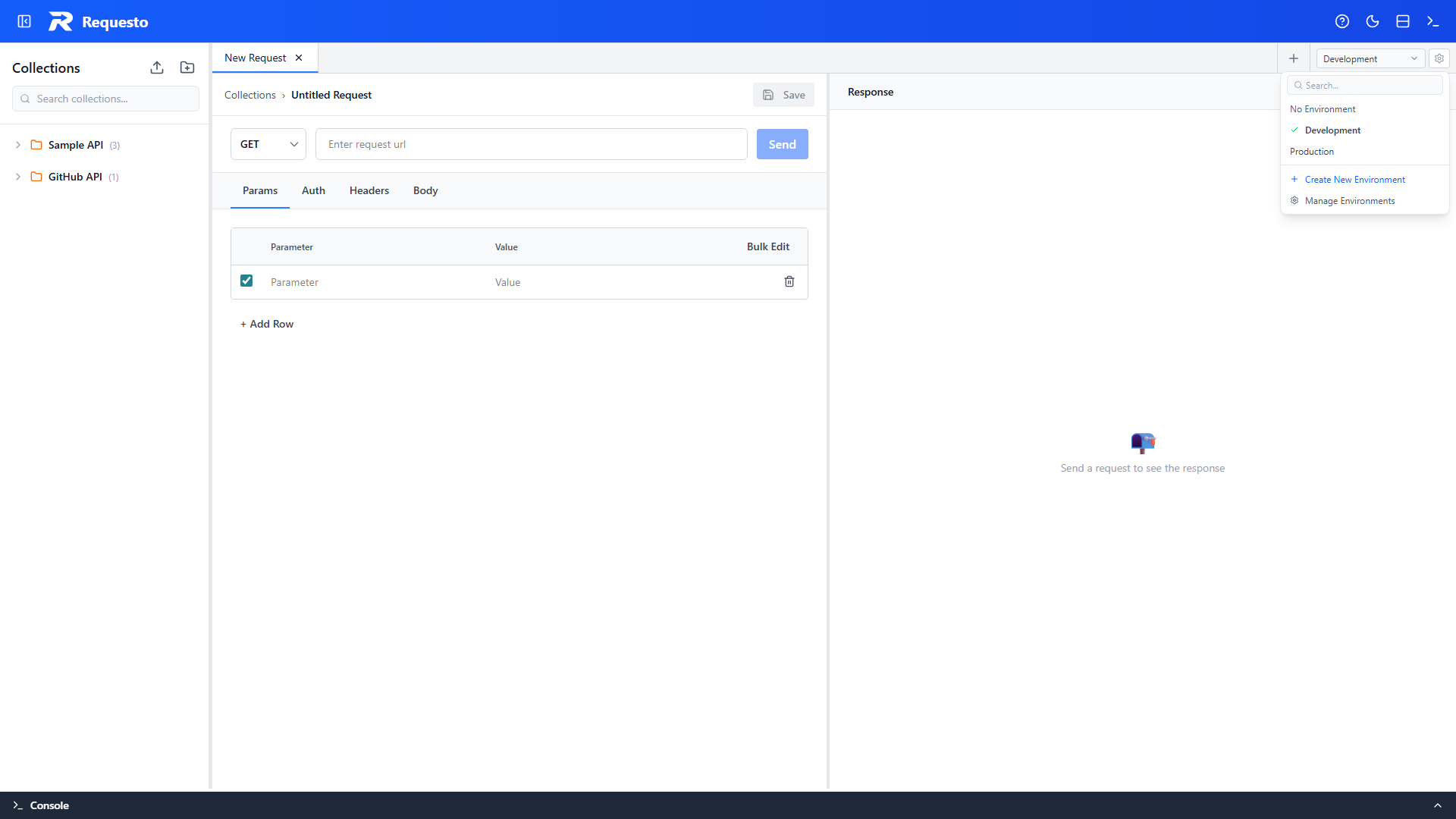
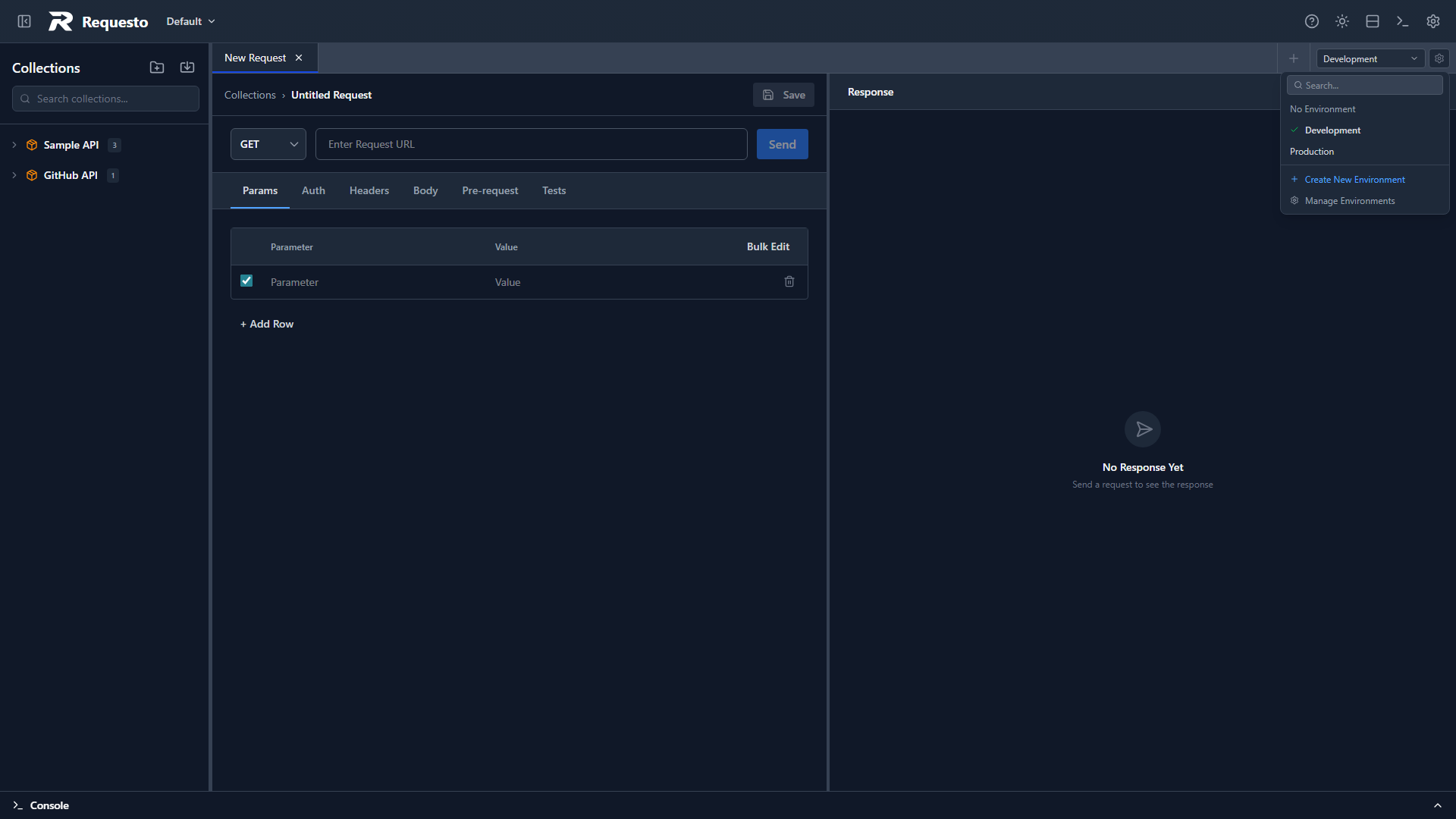
Use the environment selector dropdown in the tabs bar. Selecting a different environment changes which variables are substituted - you don't need to edit any requests.
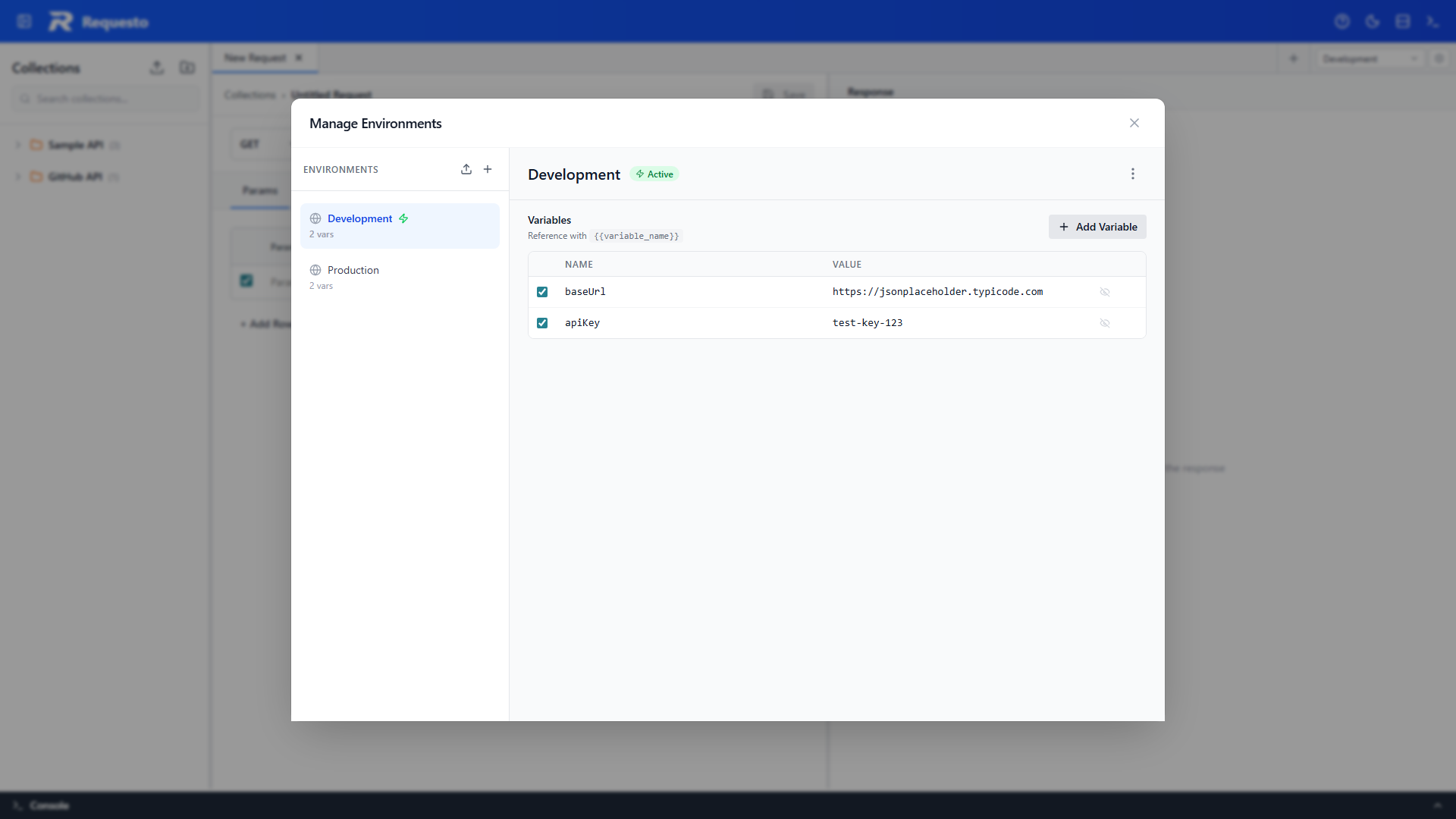
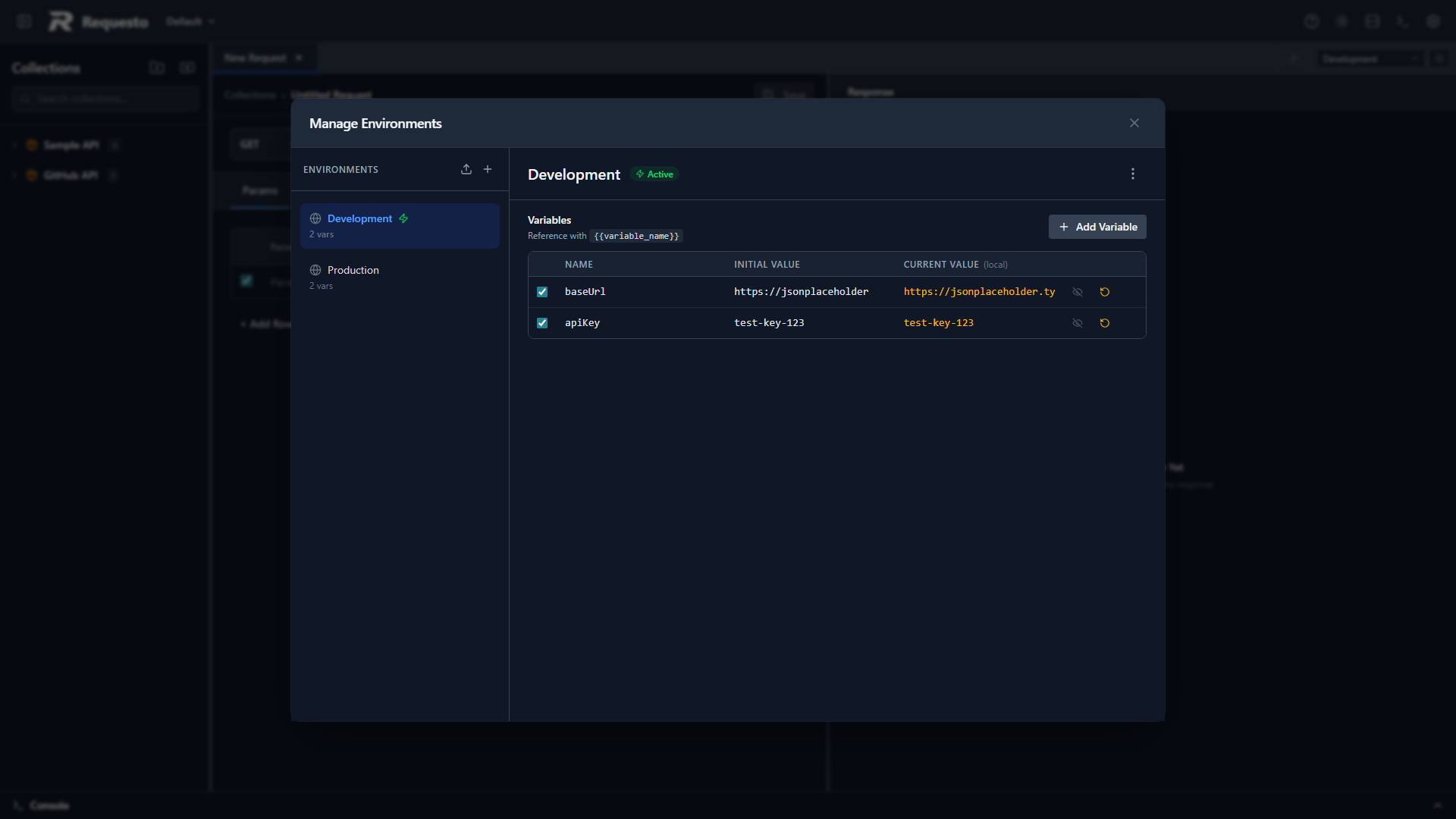
Initial Value and Current Value
Each environment variable has two value fields:
| Field | Description |
|---|---|
| Value | The initial value. This is stored in the environment's file under .requesto/environments/ and committed to git when you sync your workspace. |
| Current Value | A local override. Stored in .requesto/local/environments.local.json, which is excluded from git. |
When a request is sent, the current value takes precedence over the initial value if one is set. If no current value exists, the initial value is used.
The current value column is visible in the variable editor table. A reset icon lets you clear the current value on a single variable, and the environment's ⋯ menu can reset all current values back to their initial values.
Why This Matters for Scripts
Pre-request scripts and test scripts use environment.set() to update variables at runtime. These writes always go to the current value, never to the initial value. This means:
- Tokens, timestamps, and session IDs set by scripts stay local to your machine
- The environment files under
.requesto/environments/stay clean for git commits - Team members share the initial values in version control and manage their own current values locally
See Pre-request Scripts for the full scripting API.
Where Variables Are Substituted
The backend replaces {{variable}} placeholders in:
- Request URL
- Header values
- Request body
- Form-data entries (text keys and values)
- Auth credential fields (basic, bearer, API key, digest)
Variable values may themselves reference other variables (e.g. a baseUrl variable set to {{requestoServerUrl}}); references are resolved before substitution.
Variable names are case-sensitive: {{api_key}} and {{API_KEY}} are different variables.